
Snapping to the grids
There is way more than the visible grid.
All the perspective grids guide your brush strokes along the perspective lines (until you turn the snapping off).
Perspective grid mini-toolbar


Grid icon
tap to close the tool.

Snap toggle is active by default);
Turning it off returns to regular behavior (as without the grid)

Hiding the grid doesn't turn off the snapping. You can work precisely without seeing the grid.
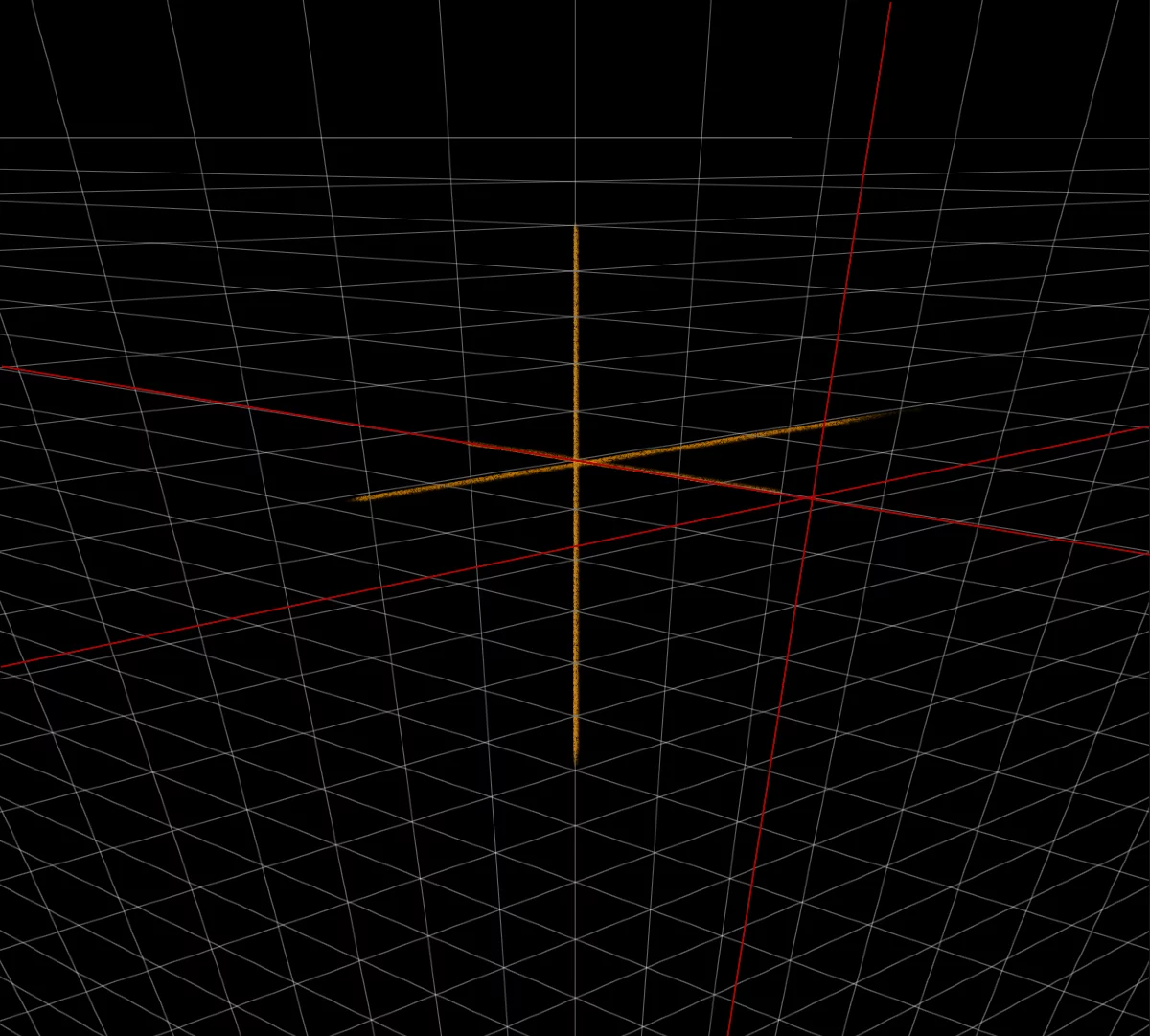
Freehand strokes follow the directions towards any of the vanishing points. A set of red guide lines are displayed at the cursor location in real time. They show the directions towards the VPs.
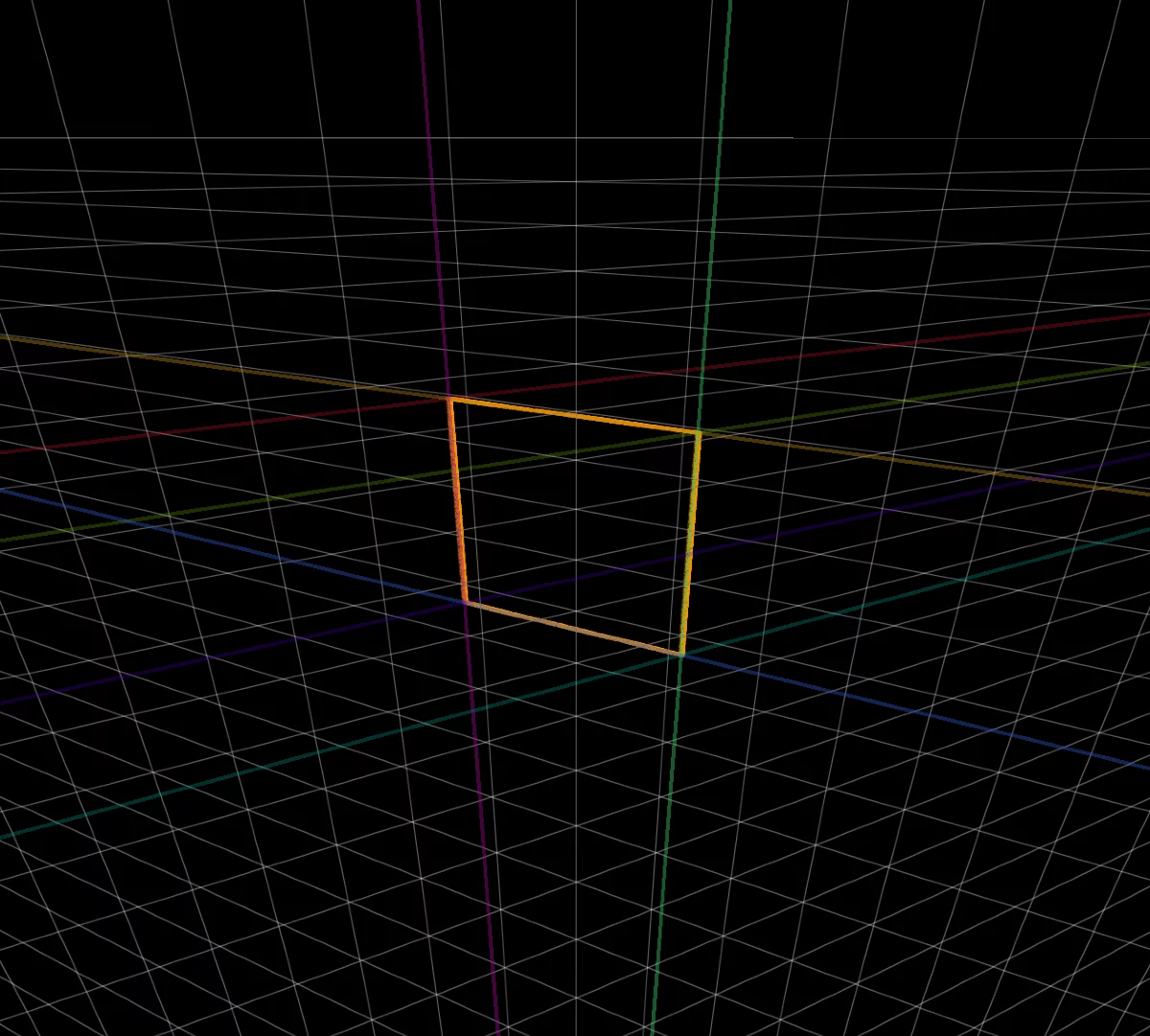
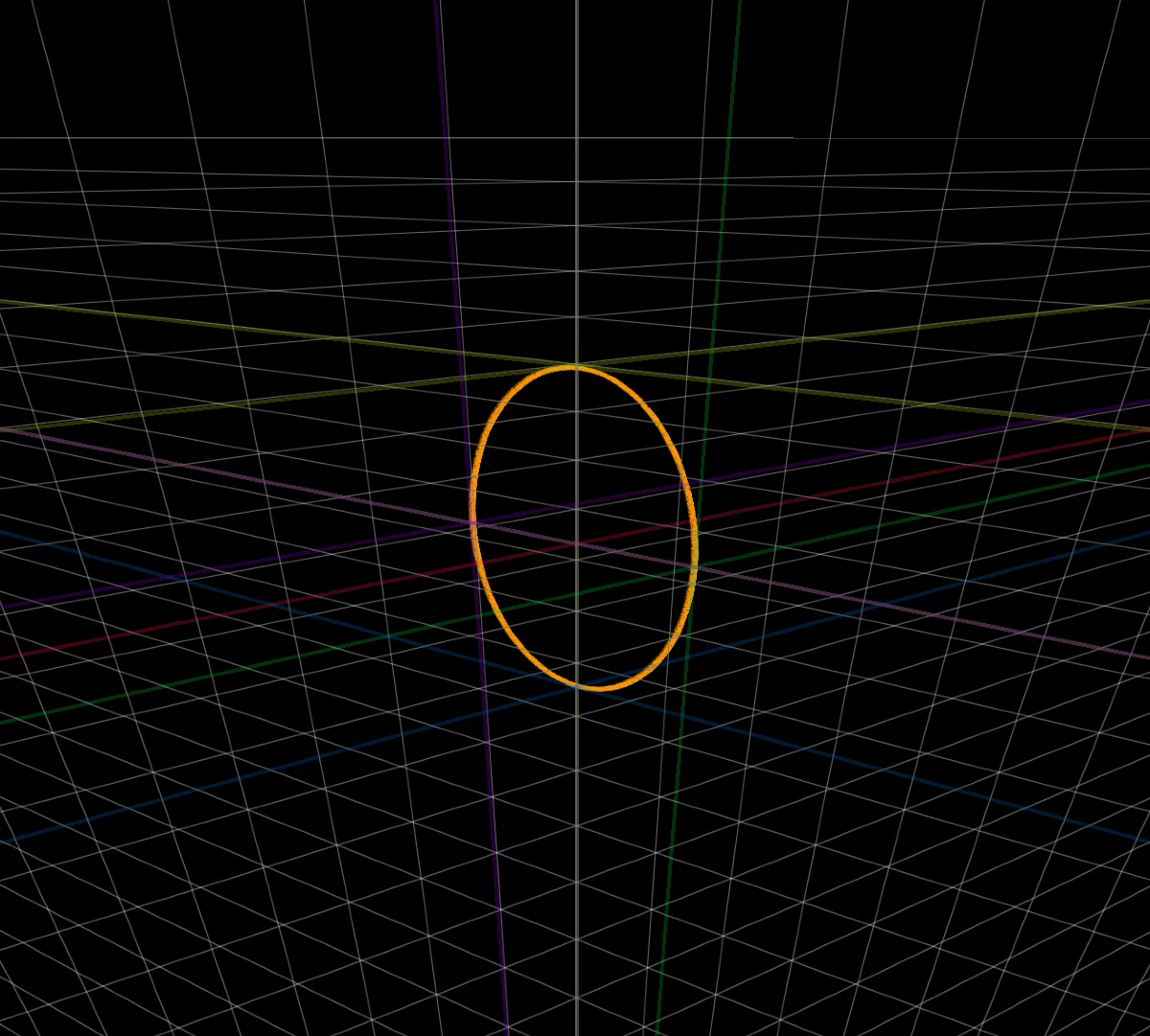
Rectangle and Circle shapes automatically follow the geometry of the chosen virtual 'plane' in the perspective construction. Learn more about the shapes-in-perspective in Shapes in perspective.
Note the set of color-coded guide lines that help to position the shape in context.
Other tools and shapes ignore the perspective grid snap, however the red guide lines may be displayed to help you work in perspective.
The Line shape doesn't follow the 3D perspective but it gives you other advantages (more in Using Line shape in perspective).
Note that in the 2D grid, the Line shape snaps to the grid crossings.