
Overview
Quick leaf generator.

Path Pattern tool in the Editing Tools menu
The Path pattern tool repeats the content of the current layer along a hand-drawn path. The number of copies range from 1 to 100.
Path Pattern toolbar

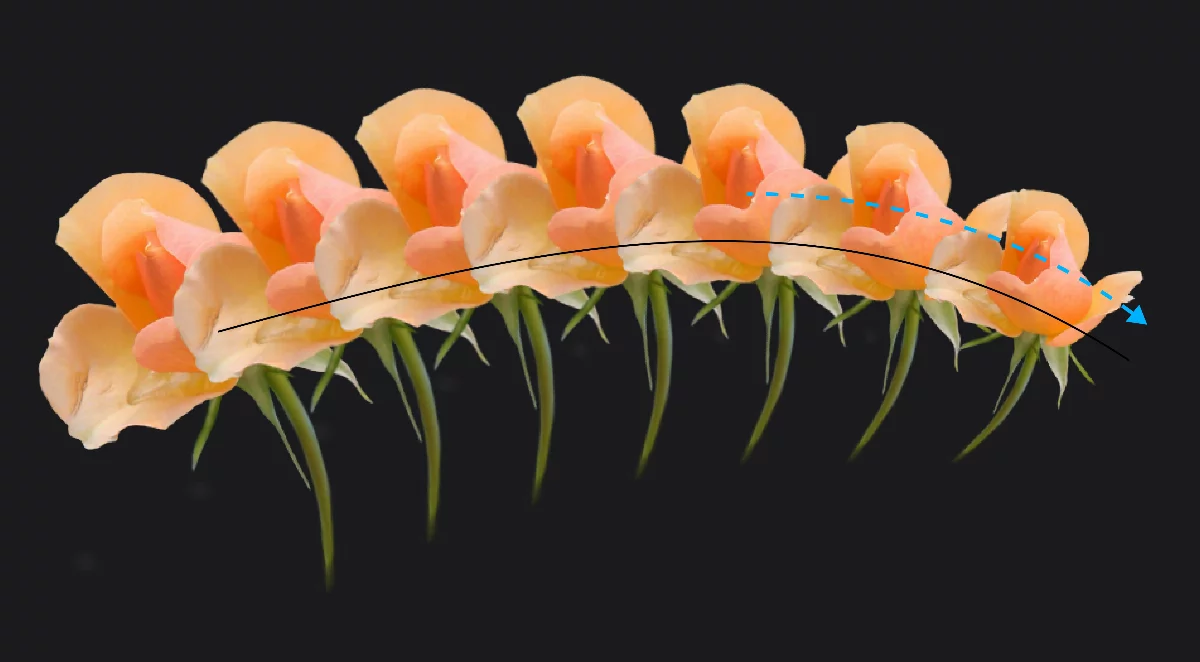
Original image
Path pattern tool works better on smaller, isolated fragments than on full-canvas images
Control path
This is the stroke you make to create the pattern. The path is not editable if drawn freehand, however you may redraw it as many times as necessary to achieve desired effect. Use Shape tools and Guides to better control the path. Especially the Path shape is perfect for this purpose.
The copies
Note that the size of the copies decreases along the path. This is because the primary application of this tool is creating plant-like imagery.

The Path pattern can be also generated from a selection.
Learn more about using selections in the Selection tools chapter.
Options
Not just leaves.
Path Pattern toolbar


Cancel
closes the tool without applying changes.
Number of copies slider
Set the desired number of copies up to 100. This can be adjusted also after drawing the path.
Size jitter slider
Adds randomness to the size of the copies.
Angular jitter slider
Adds randomness to the angle of the copies.

Confirm
Closes the tool applying the changes.
Examples
Number of copies = 4

Number of copies = 16
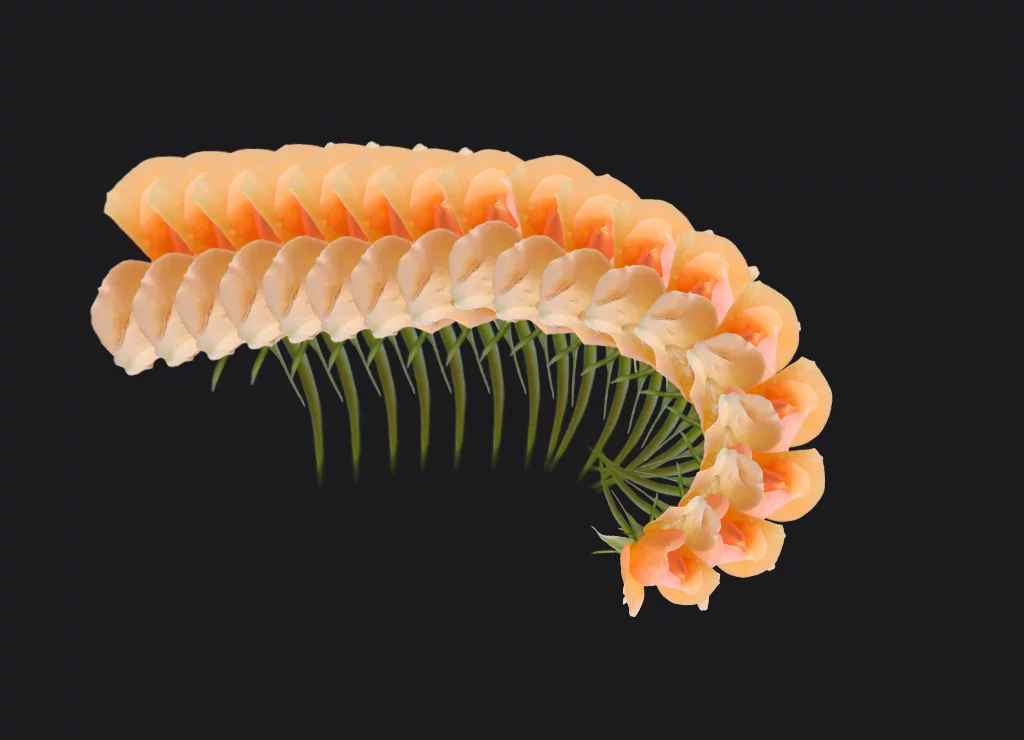
Number of copies = 100
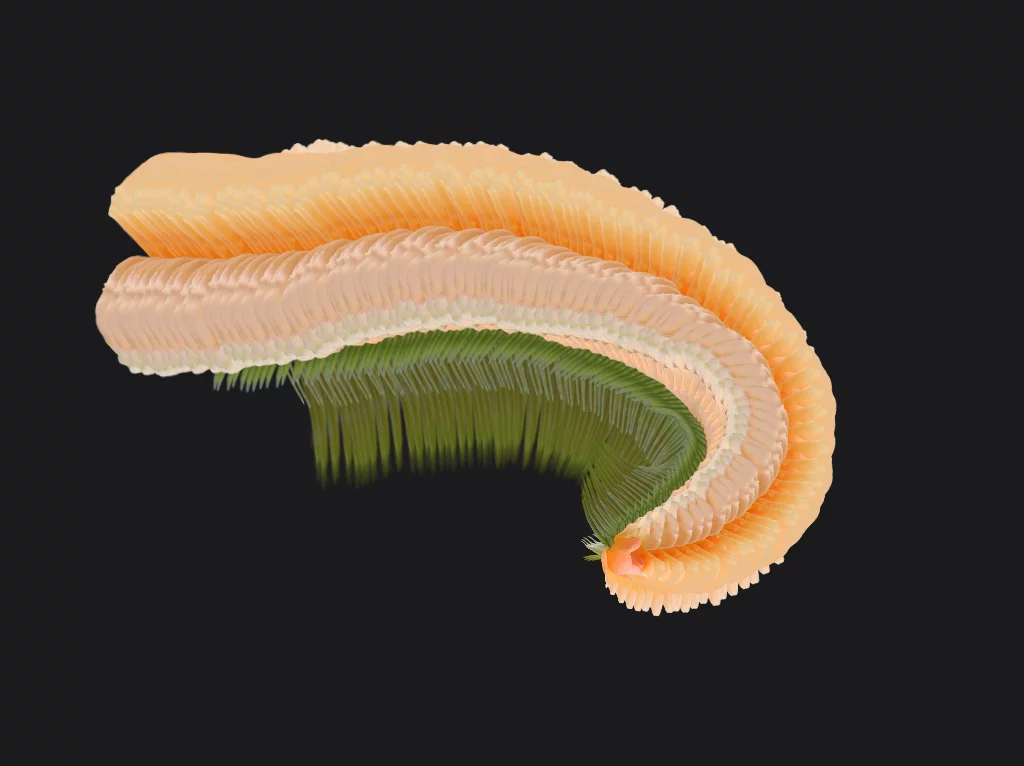
Add Size and Angle jitter to create interesting semi-random patterns
Number of copies = 10
Size and Angle jitter = 0

Number of copies = 10
Size jitter = 30
Angle jitter = 40

You can use the Path shape for perfectly controllable paths.
You can use the Lazy guide for freehand, but smoother paths.
You can also use Line, Rectangle, Circle and Arc Shape tools with the Path pattern. Learn more about using shapes in Shape tools chapter.