
Three-point perspective grid
Full-featured one.
3 Point perspective grid uses the classic perspective construction with three vanishing points.
The vertical lines converge to the third vanishing point.
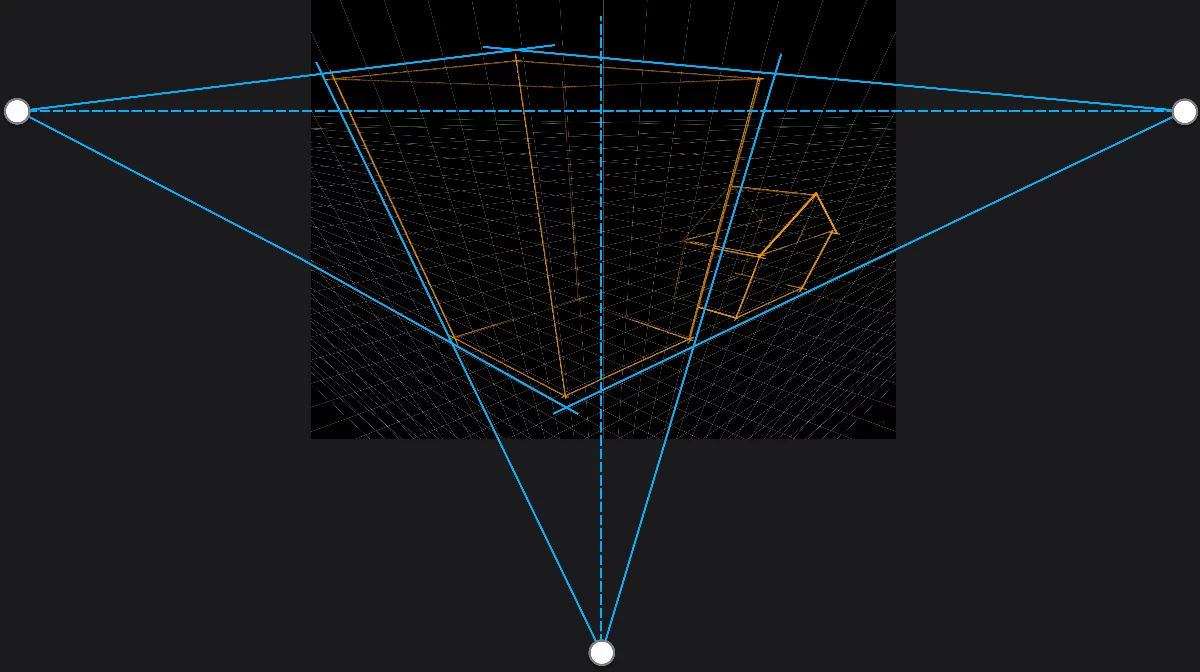
Left-hand vanishing point
Right-hand vanishing point
The vanishing points are marked with white handles. Note that they are usually far outside the canvas. You can place them wherever you wish.
The horizon line (not marked in the application)
The farther away from the canvas the VPs are, the more natural the perspective looks. See Setting up the perspective grid for more hints.
All perspective grids have identical set of controls in the Tool settings menuTool settings menu The menu that contains all the settings of currently active tools. If at least one active tool has settings, the cogwheel icon appears at the left end of the top bar.Learn more:
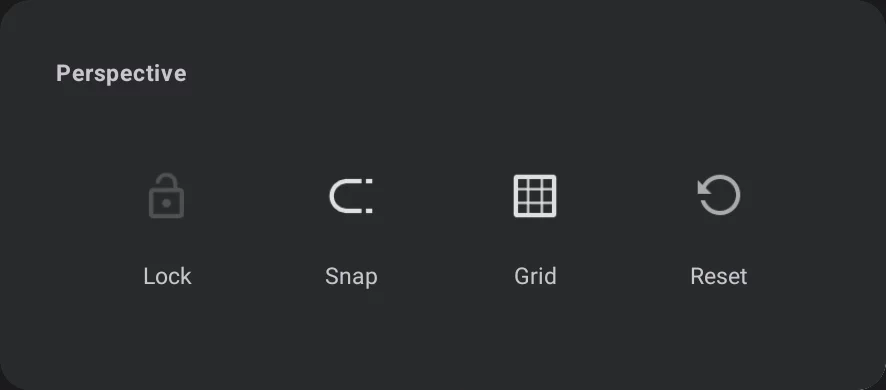

Lock grid toggle

Snap toggle (active by default)

Grid visibility toggle (visible by default)

Reset the grid to the default state.
Note that the Snap and Grid visibility toggles are duplicated on the mini-toolbar for convenience:
3 Point Perspective mini-toolbar


Grid icon
tap to close the tool.
Snap toggle (active by default); see Perspective snapping.

Grid visibility (visible by default).
Rectangle and Circle shapes follow the perspective rules in this grid. Learn more in Shapes in perspective.