
Straighten Canvas tool — overview
Rotate, in three dimensions.
Correct the geometry of your project
Straighten tool in the Editing Tools menu.
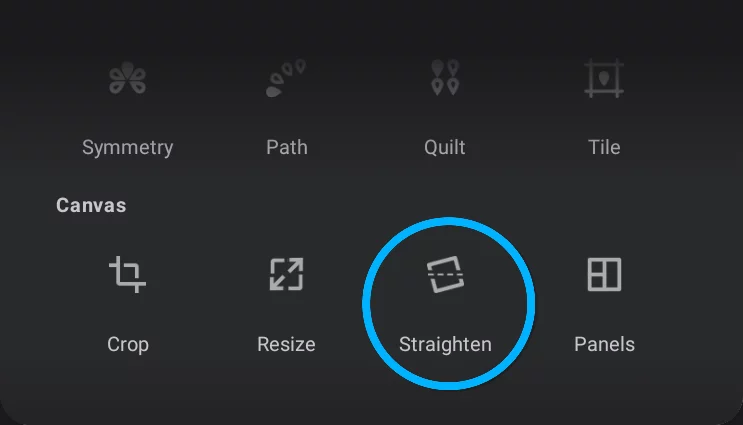
The Straighten toolbar

Cancel
closes the tool without applying changes

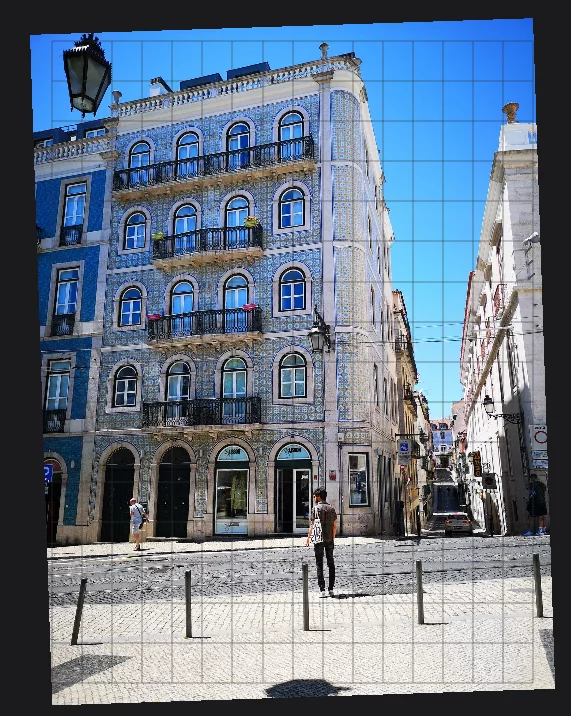
Canvas rotation

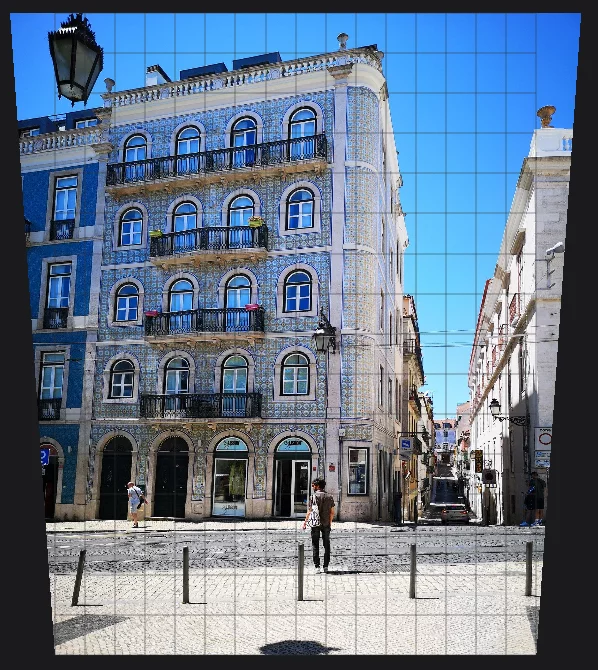
Vertical perspective correction

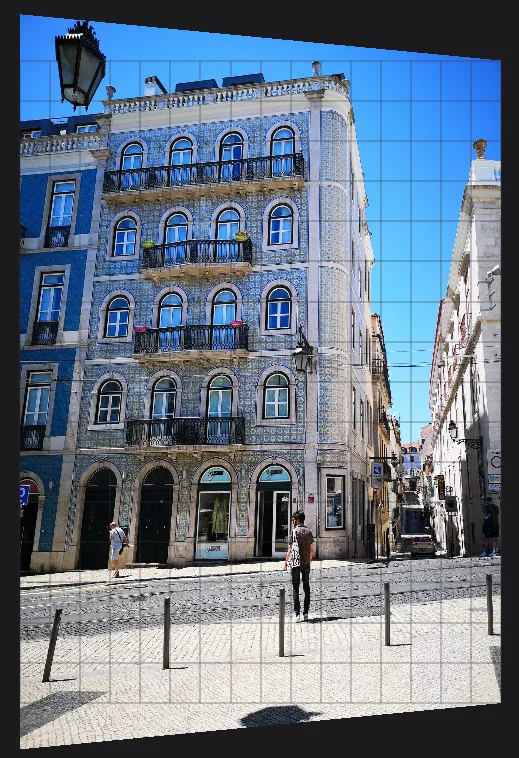
Horizontal perspective correction
Reset the geometry to its original state.
You can use the regular undo system as well.
Confirm
Closes the tool applying the changes.
Note that some parts of your artwork may be permanently discarded.
You can mix any or all three modes:

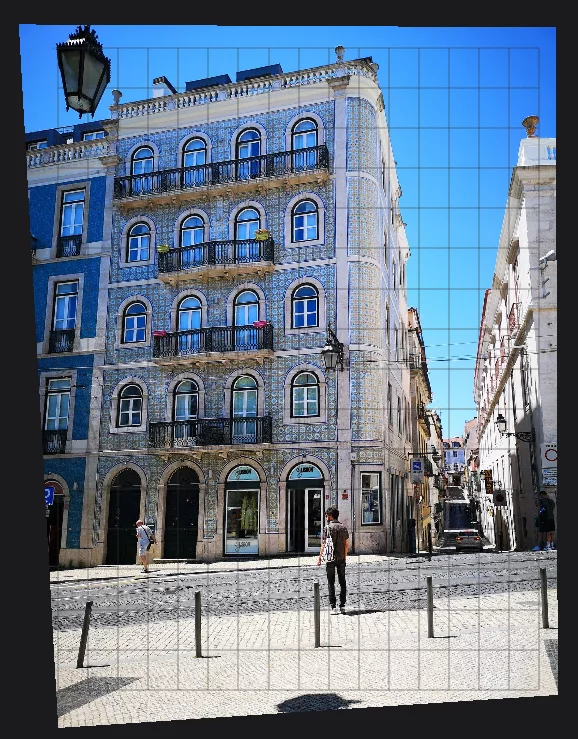
All three modes are perfect for corrections of imported photos, however you can apply them to your own work too.
All geometric corrections apply to all layers of current project.
Note that areas outside the control grid will be discarded.
Tip: if you want to keep all the image data, instead of using this tool, you can enlarge your canvas with the Resize tool and use Distort transformation on all layers. Learn about Resize tool in Resize tool and about the multilayer transformations in Transformations.
Photo from PixabayPixabayPixabay ™ is an online photo repository which contains millions of free images offered for download. Pixabay is accessible from Infinite Painter via …/Import/Search and in a couple other places.Learn more, author: DocChicago
Canvas rotation
Have an upright bearing.

Drag left to rotate clockwise. Drag right to rotate counterclockwise.
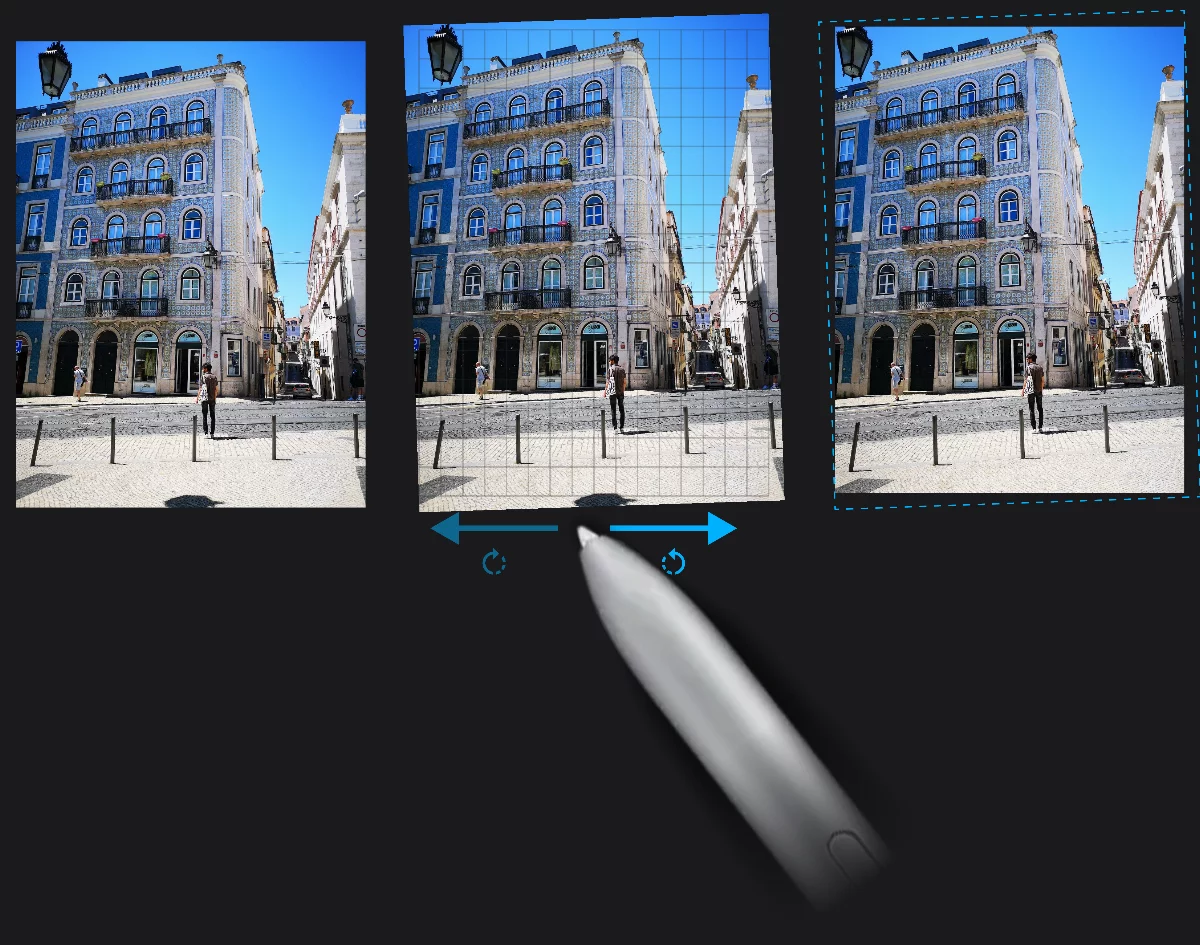
Note that the areas outside new canvas boundaries have been permanently discarded.
Original pixel dimensions of the canvas have been retained.
Vertical perspective correction
Good for skyscrapers.

Drag up to tilt up ("look upwards"). Drag down to tilt down ("look down").
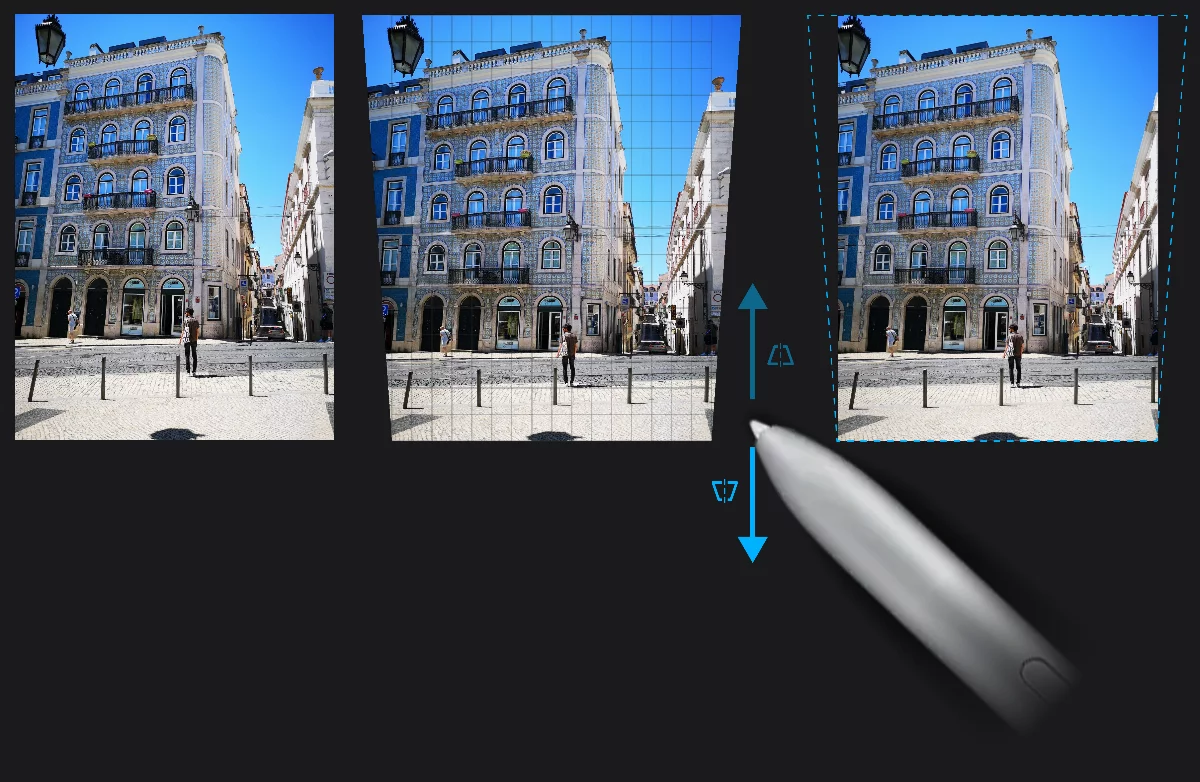
Note that the areas outside new canvas boundaries have been permanently discarded. Original pixel dimensions of the canvas have been retained.
Horizontal perspective correction
Look around a little bit.

Drag to the right to tilt right. Drag to the left to tilt left.
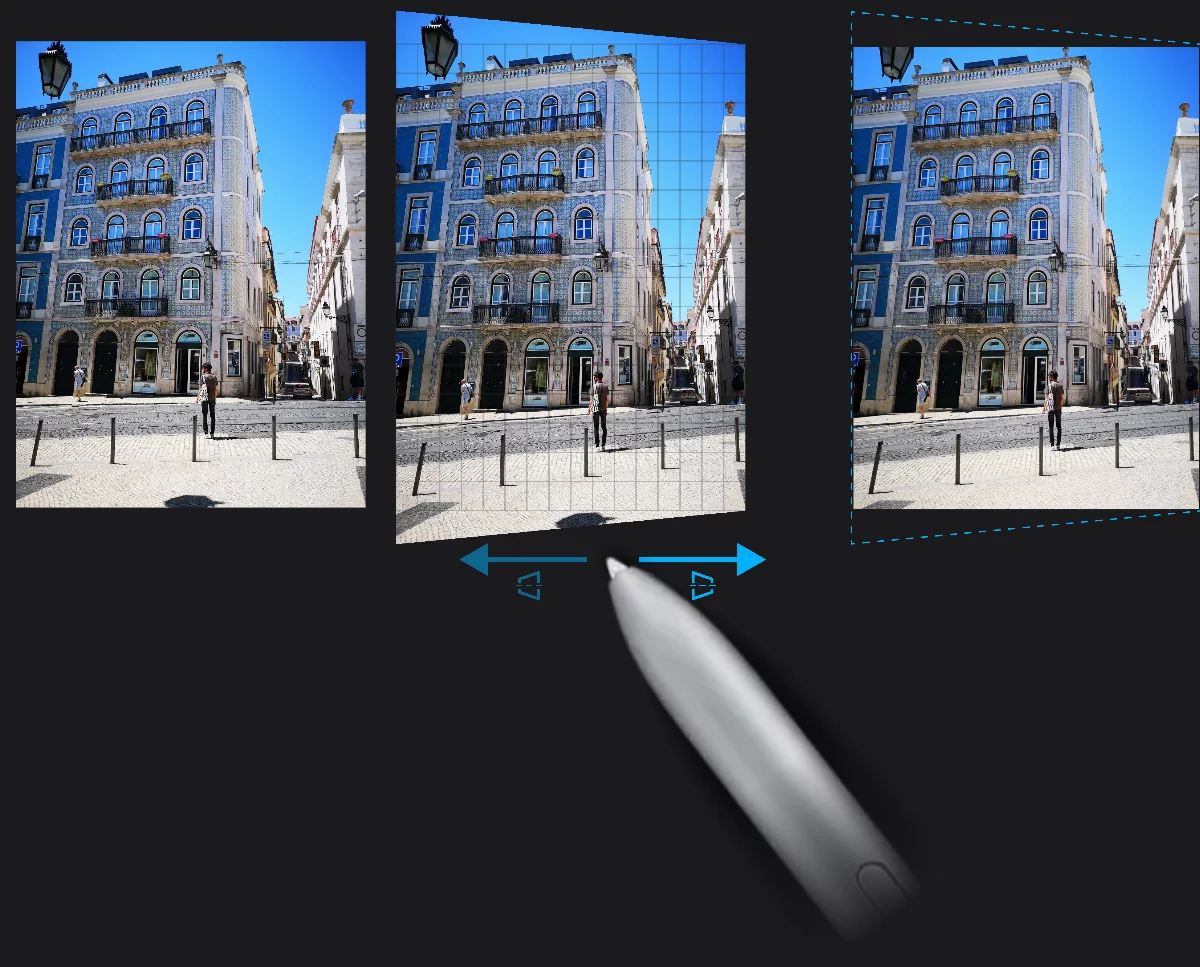
Note that the areas outside new canvas boundaries have been permanently discarded.
Original pixel dimensions of the canvas have been retained.