

To add text to your project, tap the Text button in the Creative Tools menu.
This will create a text layer immediately above the currently active regular layer.
This means that you cannot add text when any special layer is active (adjustment/filter layer, Panels layer or another Text layer) because the Tools menus are not available for these layers.
The Text tool workspace opens.
Text tool workspace
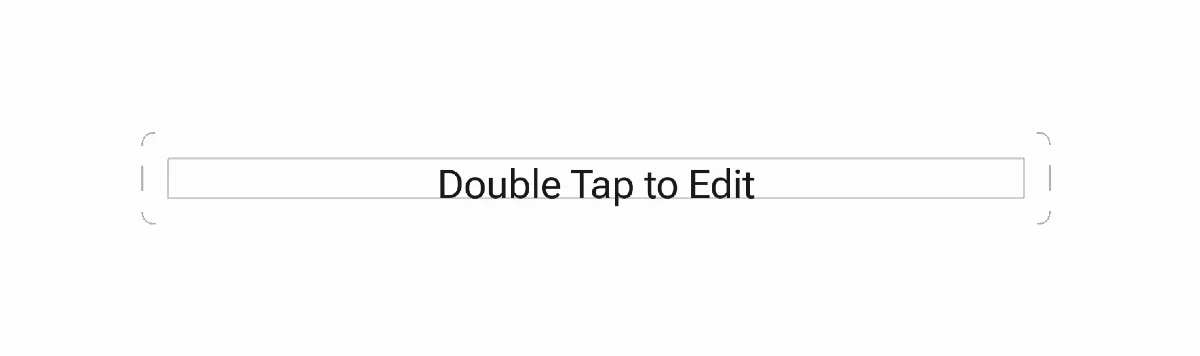
The text field on the canvas is filled with the default text (reading “Double Tap to Edit”).
and the text toolbar appears at the bottom of the screen:
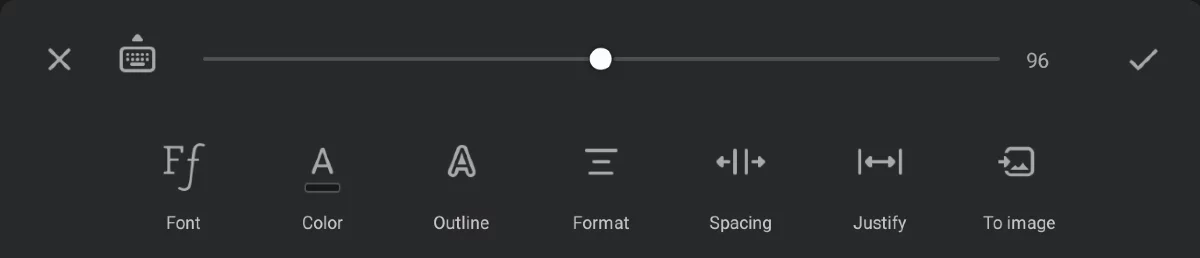
(Learn how to use the controls in Formatting text)
Entering the text

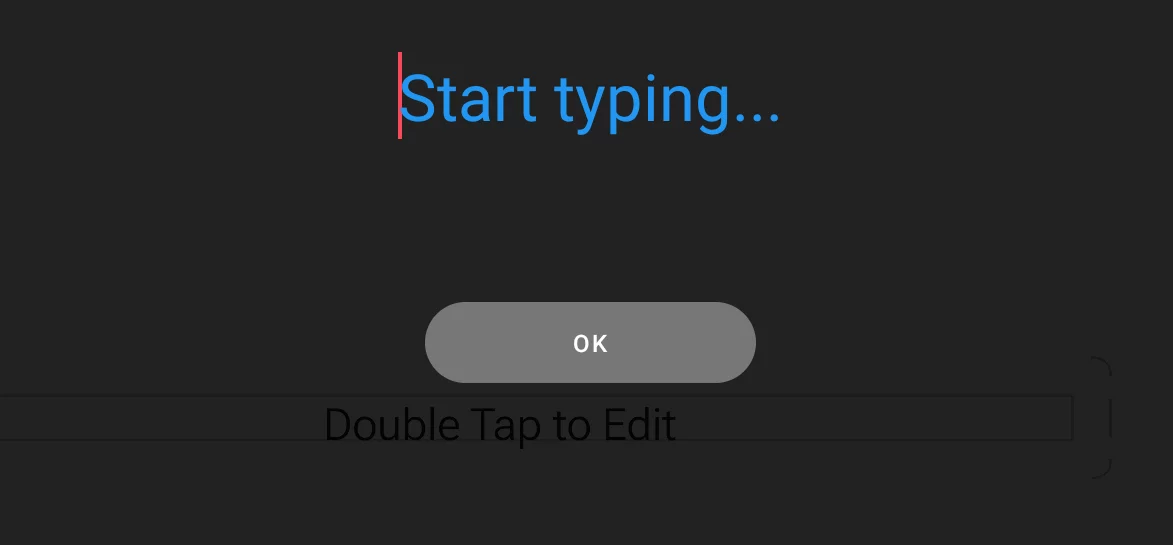
To add your text, either double tap on the text frame or tap the keyboard icon on the toolbar. This opens the text editor window.
Text input
Type the desired text string using the onscreen keyboard or other text input method available on your device (physical keyboard, handwriting, voice-to-text etc.) Of course, you can also paste text you’ve earlier copied to the system clipboard.
There are limits on how long your text may be, but the limits are far, far away from your everyday needs.
Tap the OK button to close the editor and return to the Text tool workspace.
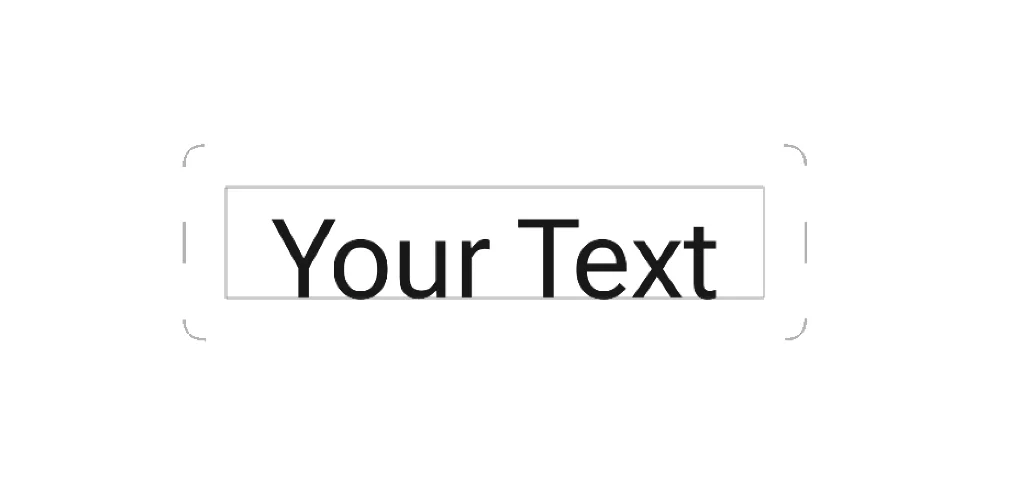
Your text appears on the canvas in the text tool workspace.
Formatting text
You can now format the text to look exactly like you wish or you can return to the text editor screen to edit the text. See Formatting text how to format text.
Closing the text tool workspace

When you are satisfied with the look of your new text object, hit the Confirm button. This will close the Text tool workspace and you will return to the main workspace. The last-used painting layer will be activated.
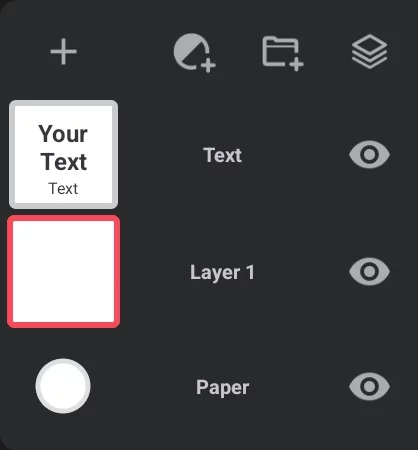
Your newly created text object will appear in the Layer panel just above this layer.
 You can close the text tool without saving the text layer by hitting the Cancel button. This however will erase your text and all the changes to its formatting you've made.
You can return to editing of the added text by activating the text layer. Learn about using layers in Using layers.