

Vertical symmetry
Mirror, mirror on the wall…
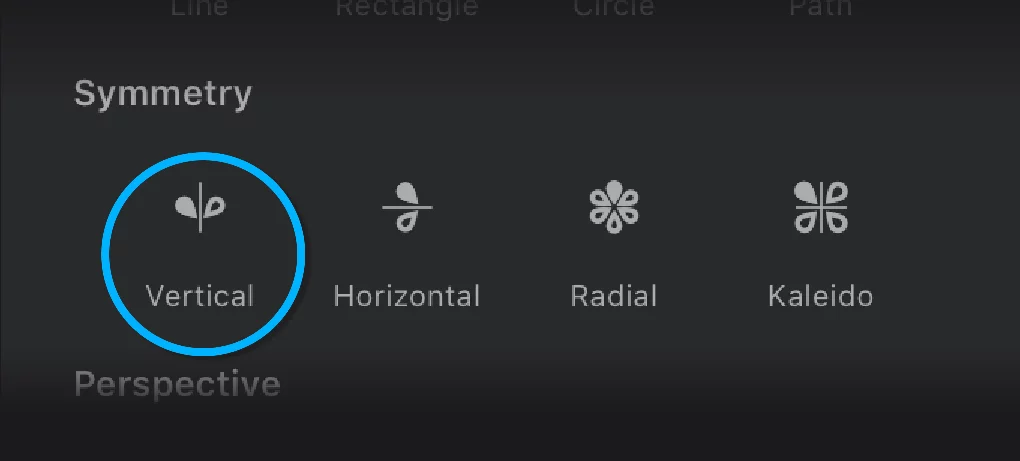
Vertical Symmetry mirrors your brush strokes relative to a vertical axis.
The angle and placement of the axis can be changed.
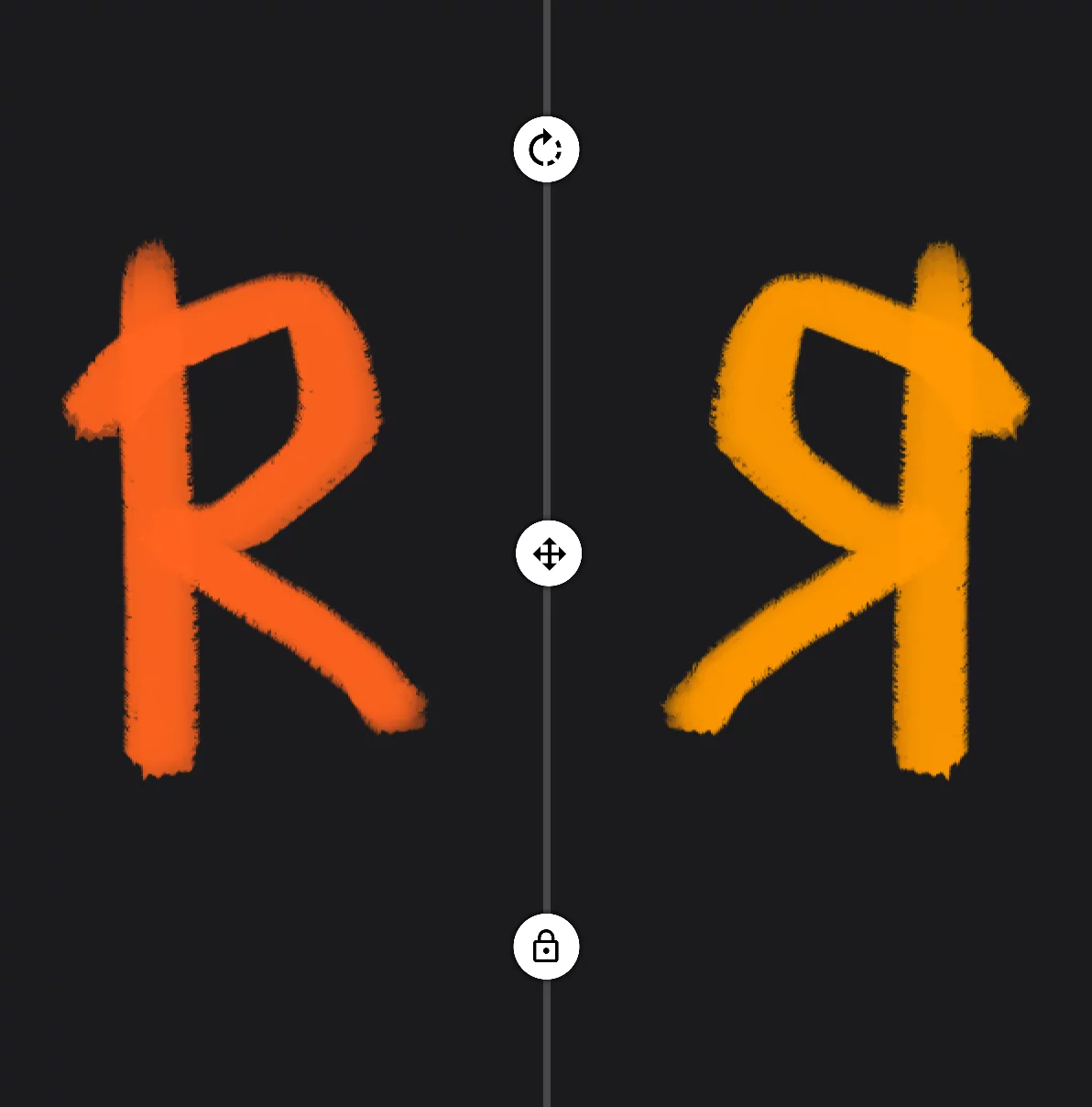
Symmetry axis Rotate axis handle

Rotate axis handle

Move axis handle

Lock button
Locks the axis position and angle; hides the controls. Unlock the axis via the Tool settings menuTool settings menu The menu that contains all the settings of currently active tools. If at least one active tool has settings, the cogwheel icon appears at the left end of the top bar.Learn more.
The original
Mirrored copy
(here shown in different color for clarity)
Vertical Symmetry settings in the Tool settings menuTool settings menu The menu that contains all the settings of currently active tools. If at least one active tool has settings, the cogwheel icon appears at the left end of the top bar.Learn more
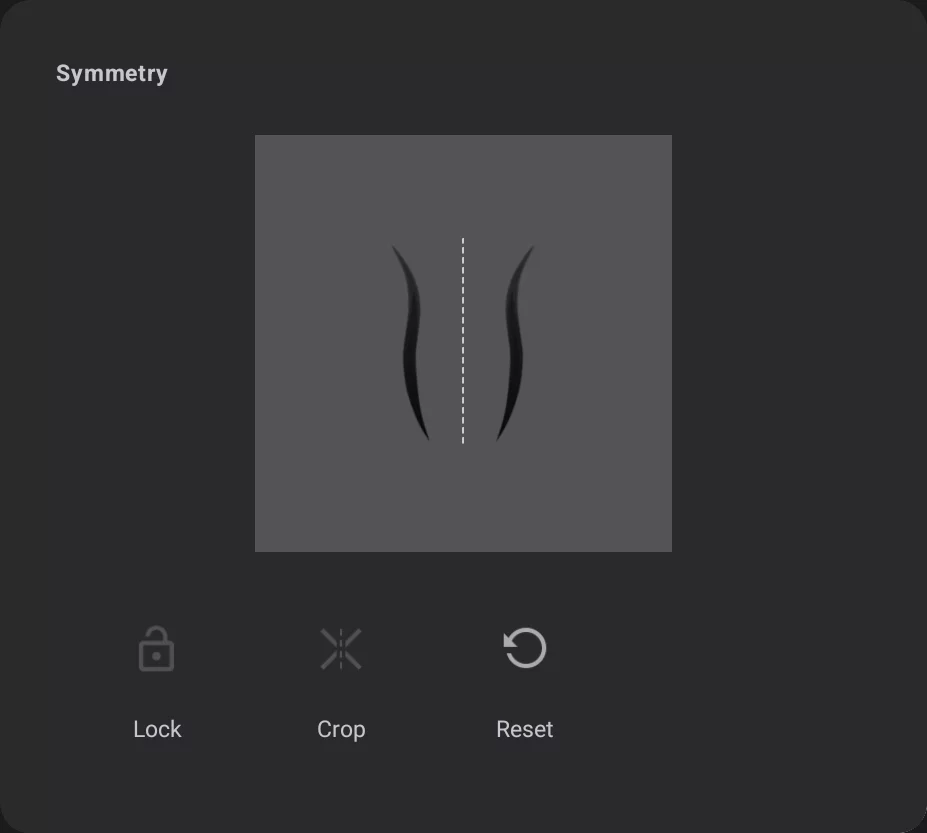
Lock axis toggle

Crop on axis
The strokes end on the axis.

Reset the axis
Resets position and angle to the default state (the center is placed at the center of the CanvasCanvasThe rectangular area of a defined size that contains the artwork. All and only the canvas will be exported or printed.).
The thumbnail
illustrating the type of the symmetry in use.
To close the tool, tap on its icon on its Mini-toolbarMini-toolbarIn Infinite Painter’s interface, a small toolbar displayed in the upper-right part of the screen when certain tool is active. This toolbar may consist of one or more buttons; the main, leftmost icon indicates the tool in use. Learn more.
Note that the Vertical and Horizontal symmetry tools are just separate presets of the same tool.
In both you can set whatever angle of the axis so the vertical may become horizontal if you wish so.
Horizontal symmetry
The mirror can also be on the floor…
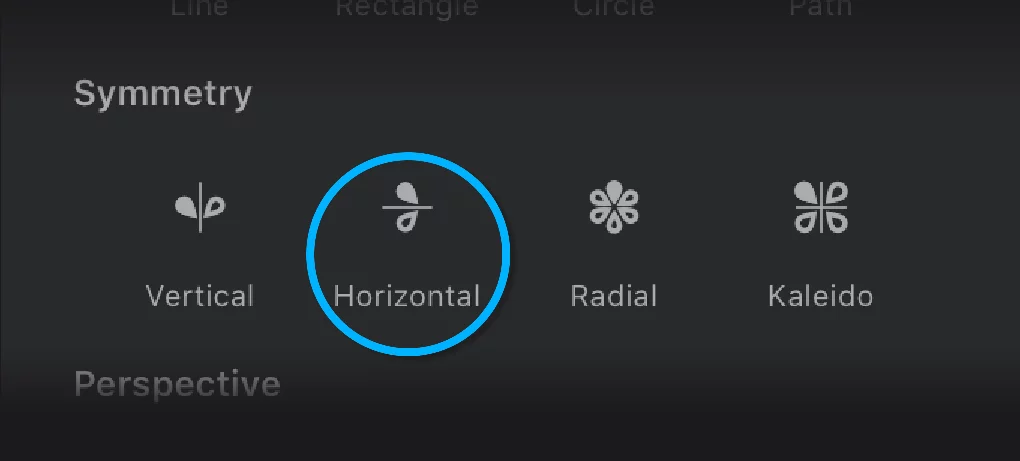
Horizontal Symmetry mirrors your brush strokes relative to a horizontal axis.
The angle and placement of the axis can be changed.
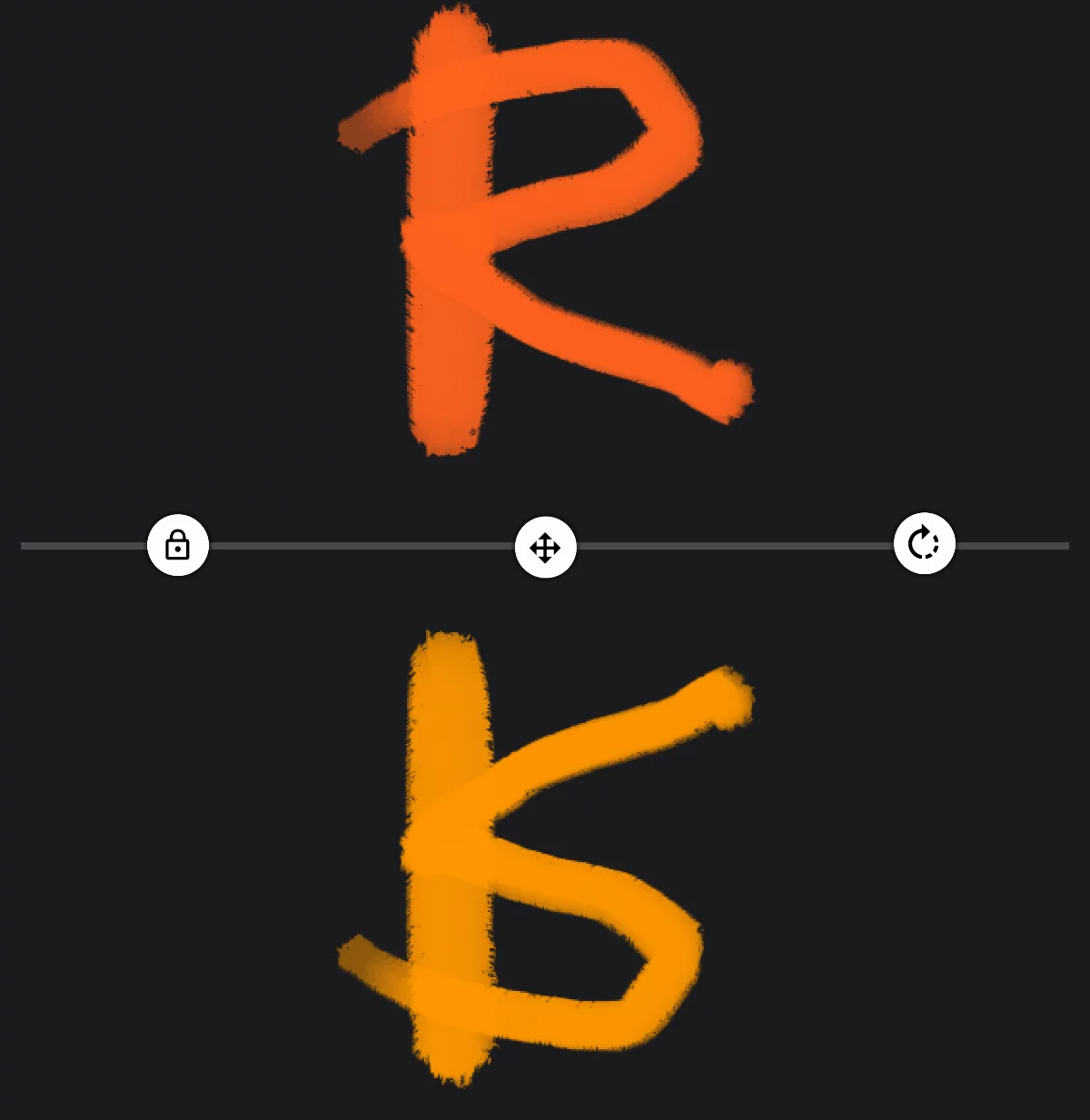
Symmetry axis
Rotate axis handle
Move axis handle
Lock button
Locks axis position and angle; hides the controls. Unlock the axis via the Tool settings menuTool settings menu The menu that contains all the settings of currently active tools. If at least one active tool has settings, the cogwheel icon appears at the left end of the top bar.Learn more.
The original
Mirrored copy
(here shown in different color for clarity)
Horizontal Symmetry settings in the Tool settings menuTool settings menu The menu that contains all the settings of currently active tools. If at least one active tool has settings, the cogwheel icon appears at the left end of the top bar.Learn more
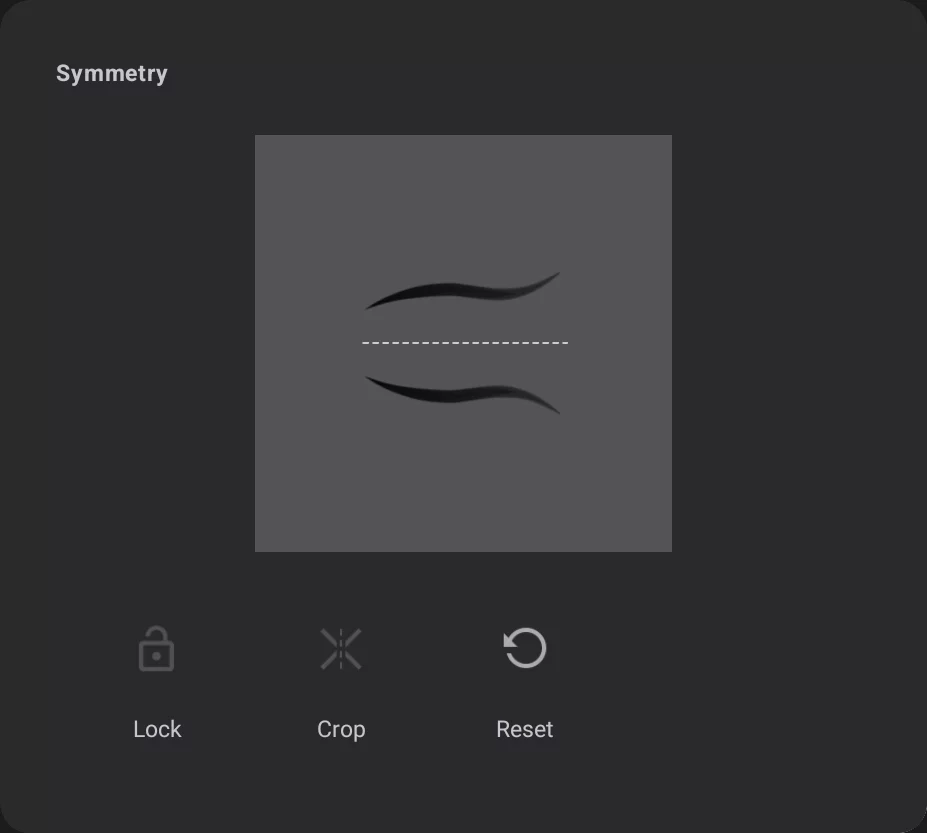
Lock axis toggle
Crop on axis
The strokes end on the axis.
Reset the axis
Resets position and angle to the default state (the center is placed at the center of the CanvasCanvasThe rectangular area of a defined size that contains the artwork. All and only the canvas will be exported or printed.).
The thumbnail
illustrating the type of the symmetry in use.
To close the tool, tap on its icon on its Mini-toolbarMini-toolbarIn Infinite Painter’s interface, a small toolbar displayed in the upper-right part of the screen when certain tool is active. This toolbar may consist of one or more buttons; the main, leftmost icon indicates the tool in use. Learn more.
Note that the Vertical and Horizontal symmetry tools are just separate presets of the same tool. In both you can set whatever angle of the axis so the vertical may become horizontal if you wish so.