
One-point perspective grid
A simple one.
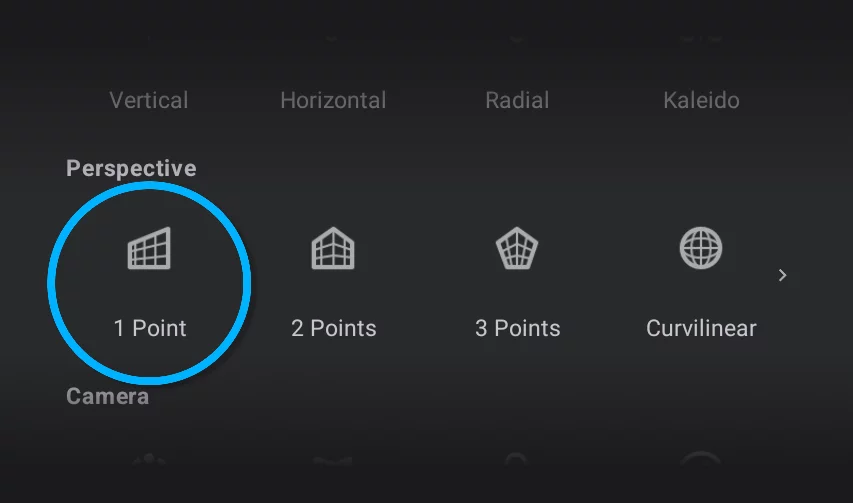
1 Point perspective grid follows a basic perspective construction with only one vanishing point.
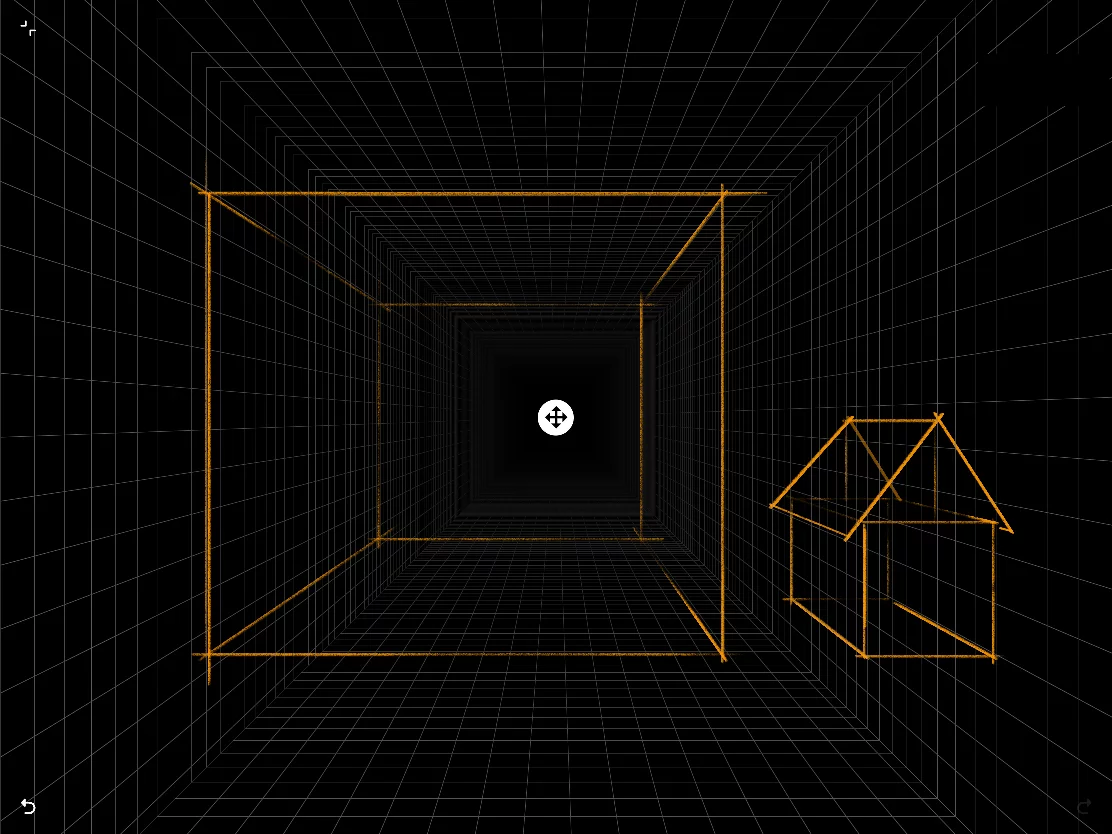
The only vanishing point is marked with the move handle. You can place it wherever you wish, even outside the canvas.
All perspective grids have identical set of controls in the Tool settings menuTool settings menu The menu that contains all the settings of currently active tools. If at least one active tool has settings, the cogwheel icon appears at the left end of the top bar.Learn more:
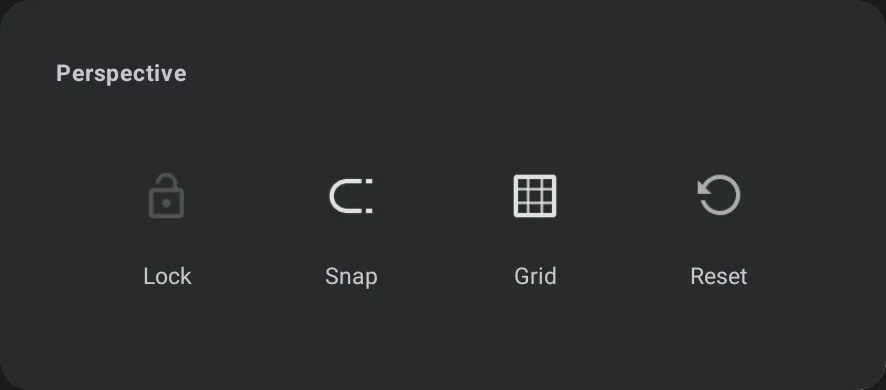

Lock grid toggle

Snap toggle (active by default)

Grid visibility toggle (visible by default)

Reset the grid to the default state.
Note that Snap and Grid visibility toggles are duplicated on the mini-toolbar for convenience:
1 Point Perspective mini-toolbar


Grid icon
tap to close the tool.
Snap toggle (active by default); see Perspective snapping.

Grid visibility (visible by default).