
Brush Editor — Paint tab
How the brush applies and blends colors.
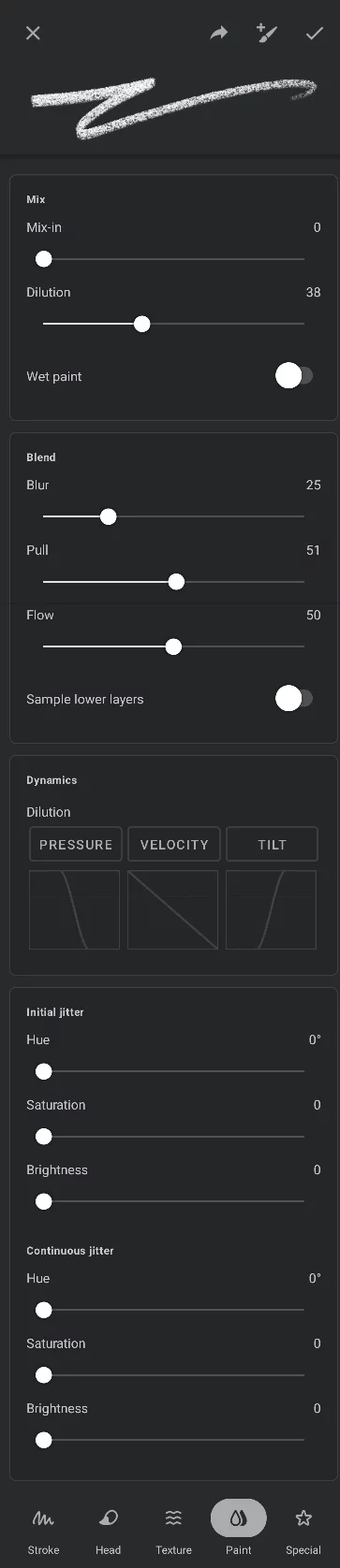
“Mix” section
“Blend” section
“Dynamics” section
“Jitter” (randomness) section
Mix and Blend sections
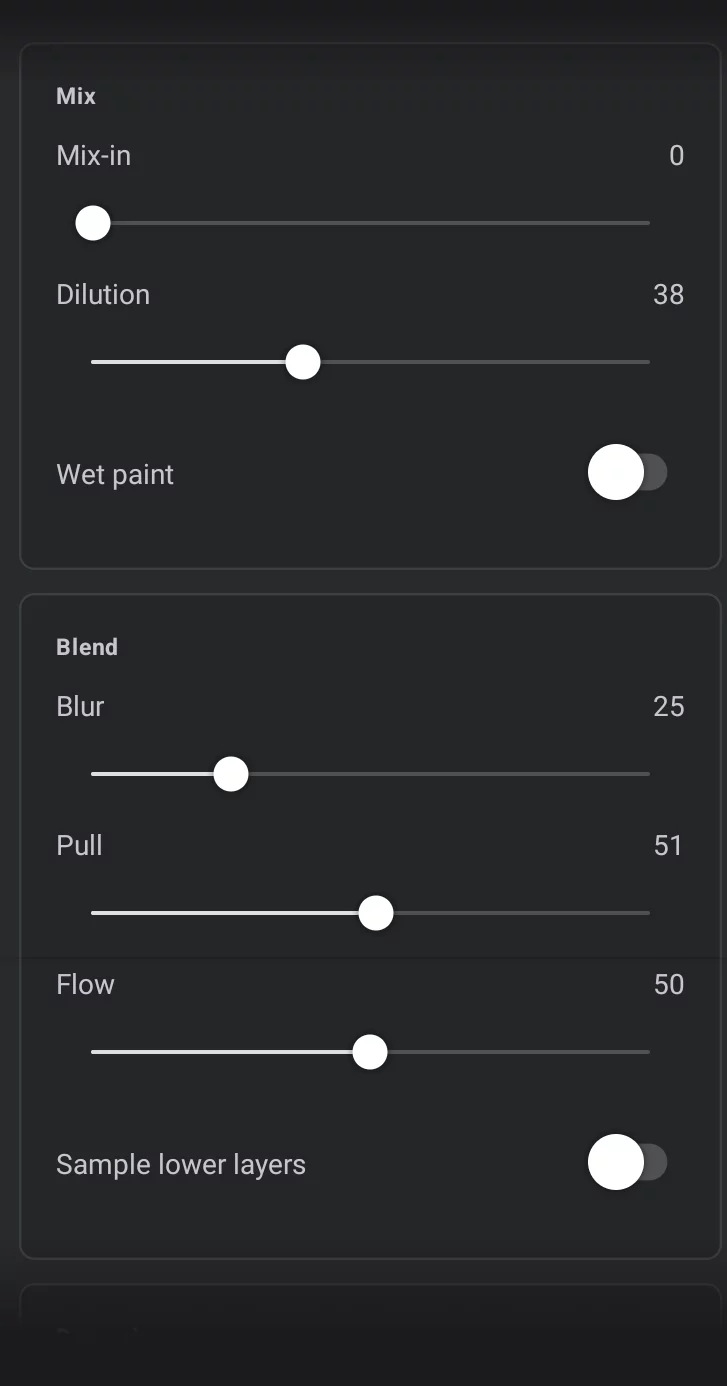
Mix section
Mix-in
Controls how much the brush picks up the underlying colors and replaces the current color on the brush. Used for paint brushes that lose paint during a stroke.
Dilution
Controls how much the brush picks up the underlying colors without replacing the current color on the brush. At 100%, this is a pure blending brush. This can create watery or waxy looking brushes.
Wet paint (switch)
only works with Mix-in or Dilution. When on, the paint is treated as wet and will move around transparency as well as color. When off, the paint is treated as dry and will not move around transparency
Blur section
Blur
Averages out the colors coming onto the brush head when blending, mixing-in or diluting. This blurs the pixels and creates softer blending. It is similar to shading pencil strokes with your finger tip. These don’t smear like paint does. At 0, this transfers the individual pixels (like a paintbrush would).
Pull
Defines the length that the paint is smudged (the pull). Technically speaking, it defines the rate at which the underlying color transfers to the brush head. At 0, the smudge is held for a shorter time so new colors are transferred to the brush head faster. At 100, the new colors are mixed in very slowly which sort of muddies or averages the new smudge colors with the old sampled smudge colors. Smaller values create a shorter smudge while higher values hold the smudge longer.
Flow
Multiplies with the Flow in the head setting specifically when blending. This can create softer blends.
Sample lower layers
If on, in Blend mode the brush will sample colors from current layer and all visible layers below it.
Dynamics section
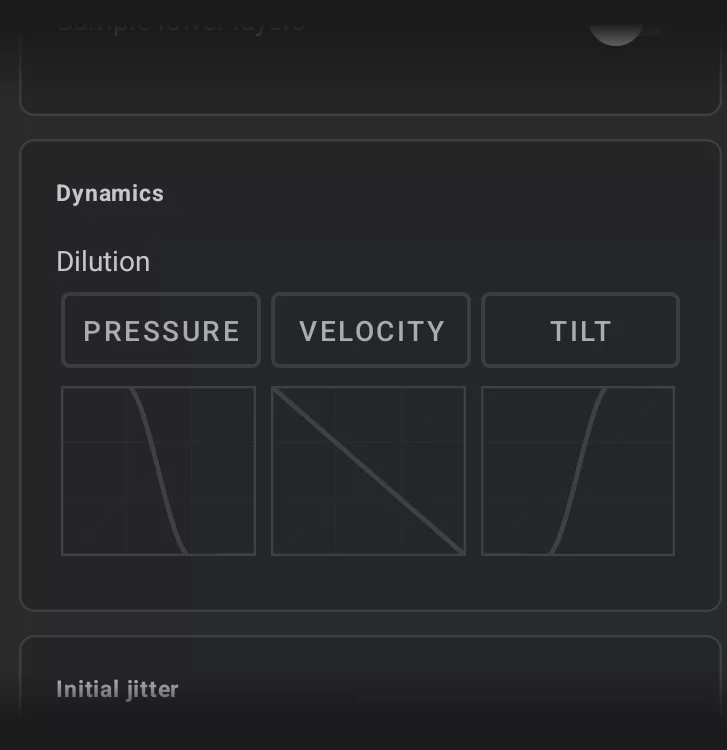
Dynamics section
Dilution
Three curves controlling dynamic behavior for the Dilution parameter. Using Dilution, you can control painting versus blending with pressure or tilting the stylus.
Jitter section
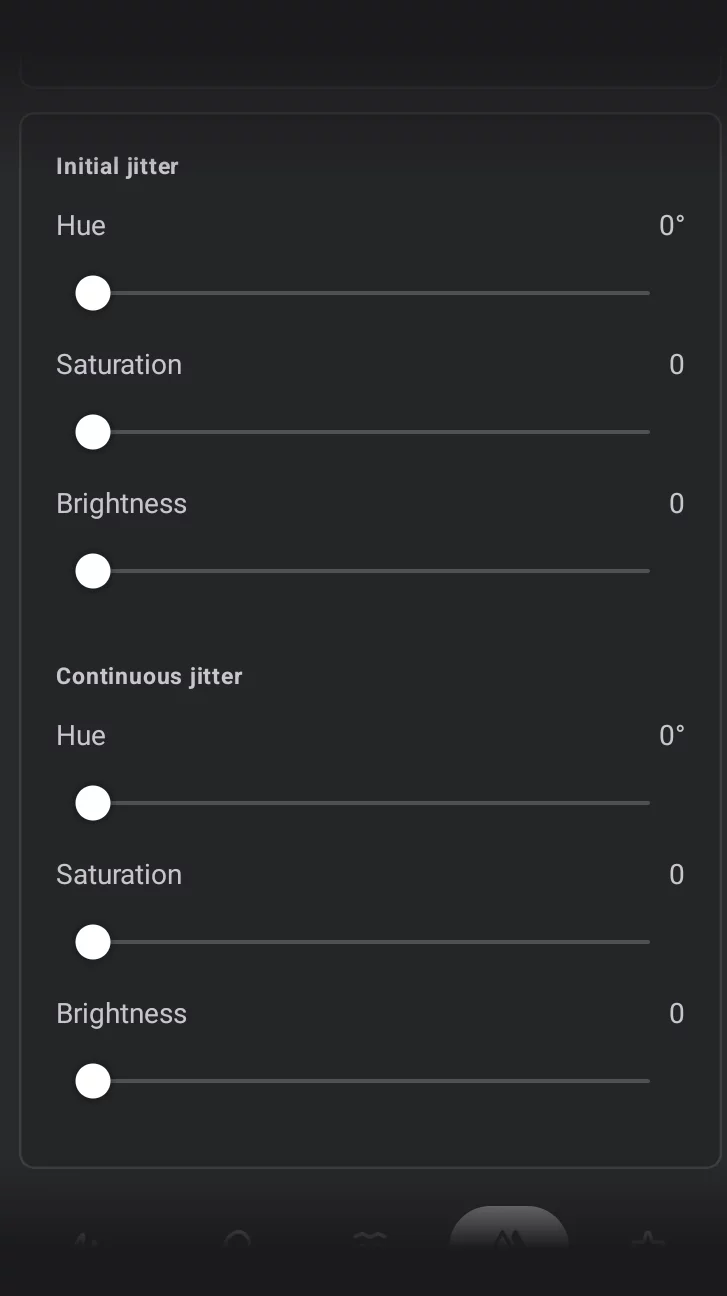
Initial jitter:
These controls add randomness to the color applied by the brush at the beginning of the stroke, based on HSB model.
Hue
Randomly changes hue.
Saturation
Randomly changes saturation.
Brightness
Randomly changes brightness.
Continuous jitter:
These controls add randomness to the color applied by the brush at each point along the stroke, based on HSB model.
Hue
Randomly changes hue.
Saturation
Randomly changes saturation.
Brightness
Randomly changes brightness.

Note that the Blur, Pull and Flow parameters in the Blend mode may be accessed via the ‘cog wheel’ icon on the main toolbar. These settings apply to the current brush only. See Blend mode.