
Overview
Array the copies.
The Quilt pattern tool fills given area with evenly distributed copies of the original.
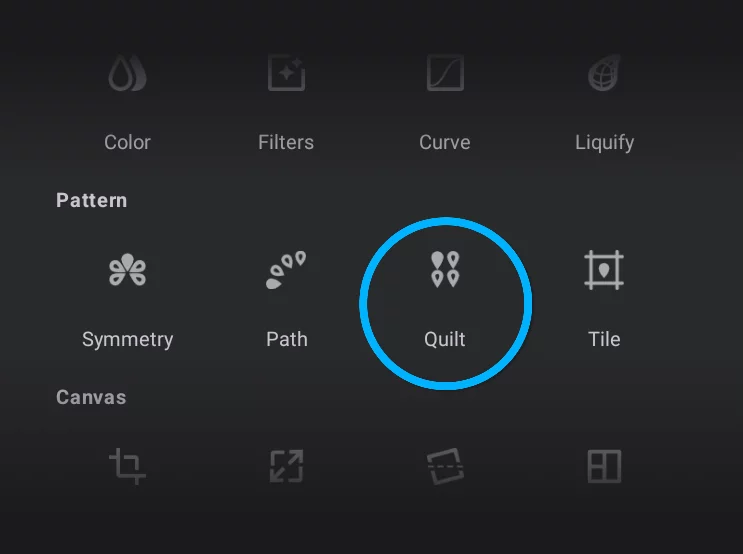
Quilt Pattern tool in the Editing Tools menu.
Quilt Pattern toolbar (see below)

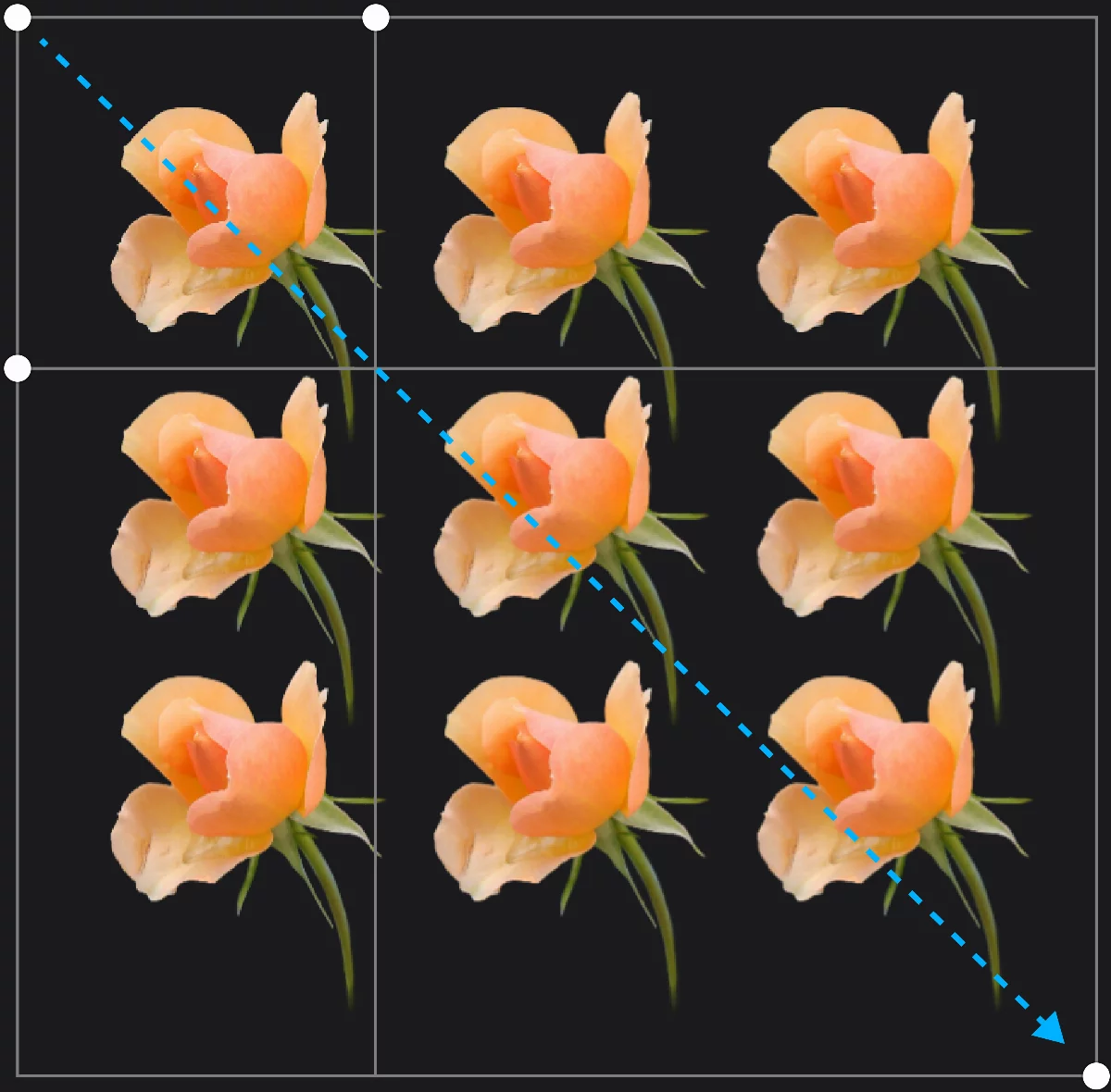
The base point
Start dragging the pattern area rectangle from here.
Vertical divisions control handle
Drag to adjust the number of copies vertically.
Horizontal divisions control handle
Drag to adjust the number of copies horizontally.
Pattern area control handle
The original image
Path pattern tool works better on smaller, isolated fragments than on full-canvas images.
Controls
Once you get the feel, you'll master it.


Cancel
closes the tool without applying changes.

Reflect horizontally

Reflect vertically

Confirm
Closes the tool applying the changes.
The number of copies in each direction is determined by the position of the control handles:
2 copies
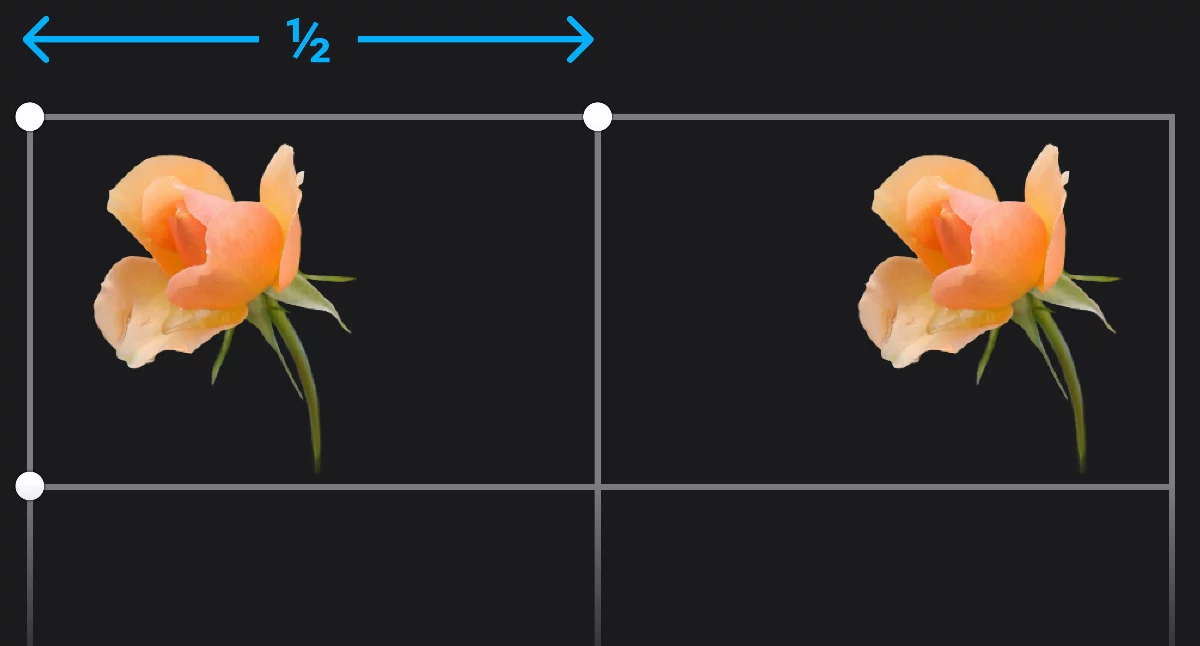
3 copies
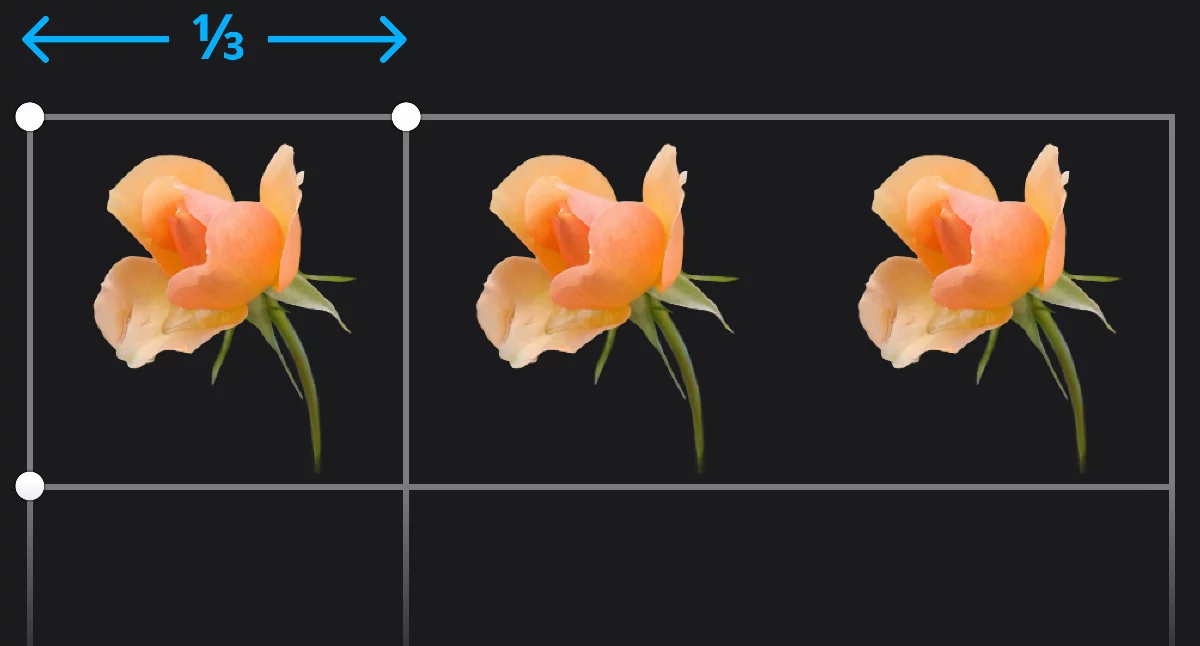
4 copies
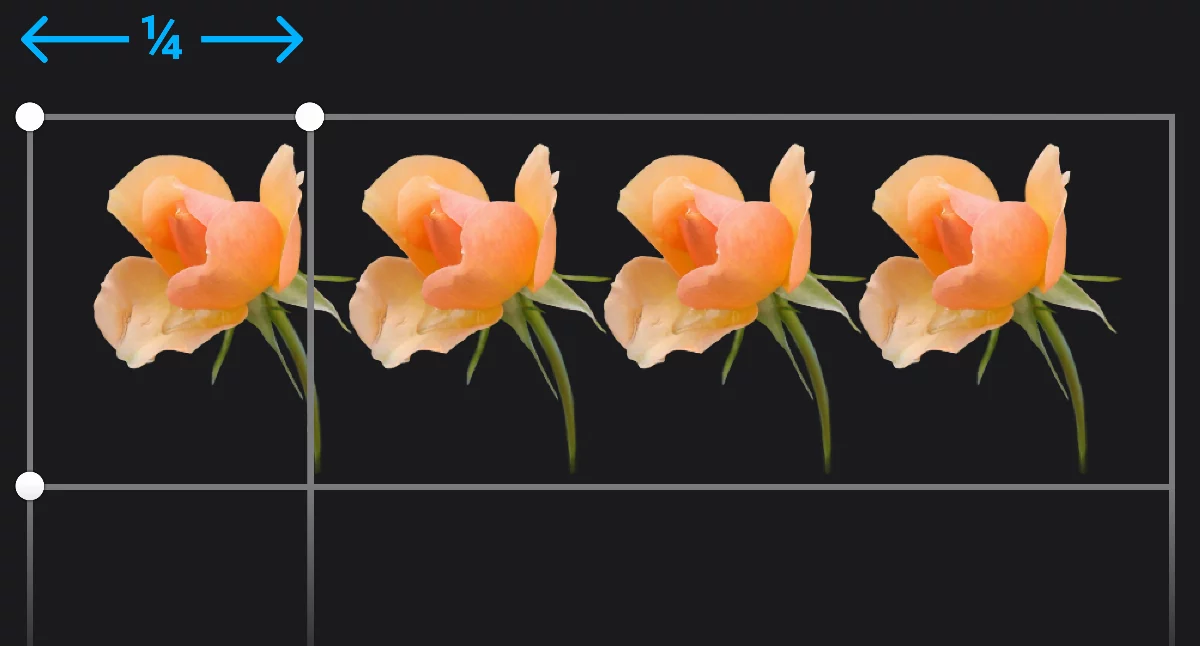
5 copies
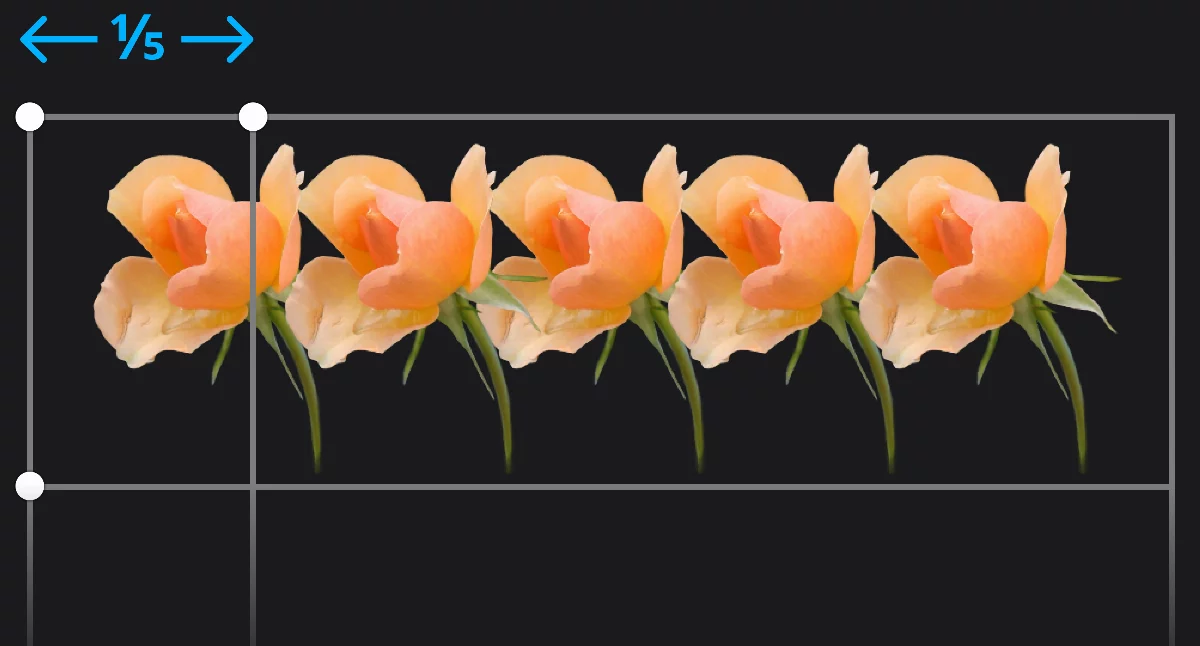
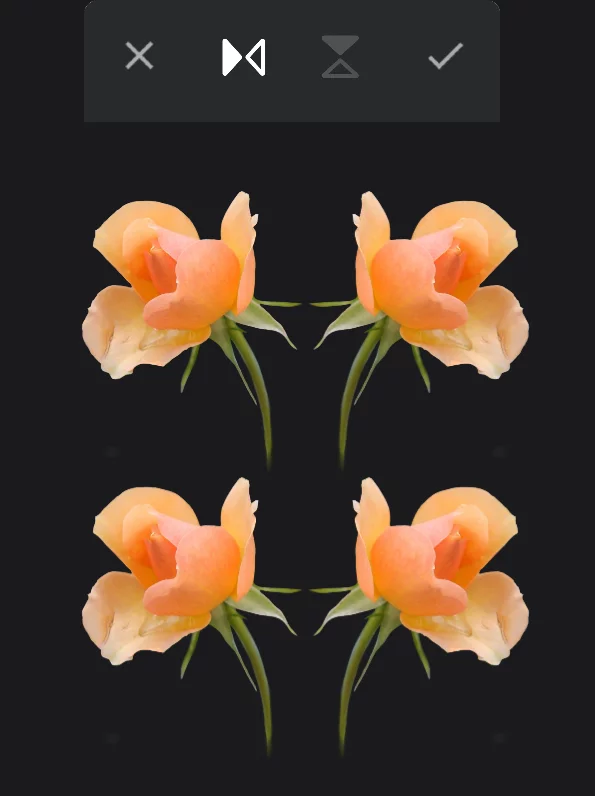
Reflection mode
Reflect horizontally
Reflect both horizontally and vertically
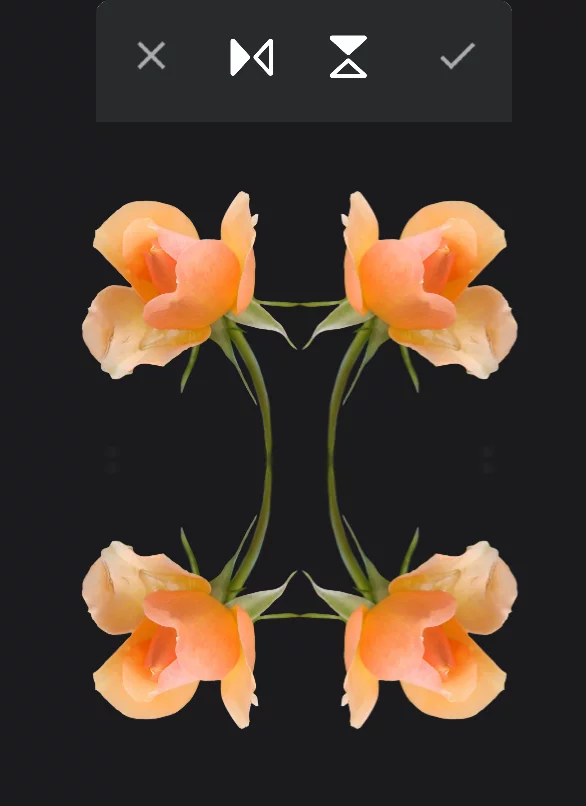
For the reflection mode to work properly it may be necessary to extend the pattern area beyond the canvas.
The quilt pattern tool works better on smaller, isolated fragments than on full layers.
It is advisable to place the original in a corner of the area to be filled with the pattern. Otherwise the resulting pattern may be generated outside the control rectangle.
Maximum number of copies in each direction is over 100. Note that with high number of copies the performance may decrease. The last-used settings (the number of copies in each direction) are used as default for subsequent patterns.