Built-in font collection
Infinite Painter 7.2 comes with 18 built-in font families provided by Google Fonts.
(This makes well over a hundred of separate fonts)
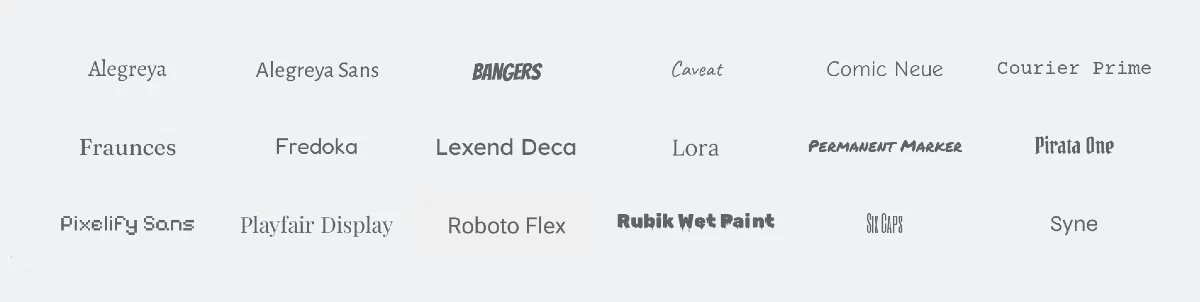
Alegreya (12 font weights)
Alegreya Sans (12 weights)
Bangers (1 weight)
Caveat (4 weights)
Comic Neue (1 weight)
Courier Prime (1 weight)
Fraunces (18 weights + variable* on 2 axes)
Fredoka (5 weights + variable on 1 axis)
Lexend Deca (9 weights)
Lora (18 weights)
Permanent Marker (1 weight; on Apache License)
Pirata One (1 weight)
Pixelify Sans (4 weights)
Playfair Display (8 weights)
Roboto Flex (10 weights + variable on 3 axes)
Rubik Wet Paint (1 weight)
Six Caps (1 weight)
Syne (5 weights)
* Learn about what variable fonts are in Variable fonts.
Language support
Almost all the built-in fonts offer extended Latin character set (covering most of the languages that use Latin script) and a number of font families include Cyrillic and Greek character sets. There are no Arabic, Hebrew and Asian scripts in this font set. You need to install custom fonts if you need text in these scripts.
Infinite Painter supports RTL (right-to-left) scripts and non-Latin character sets
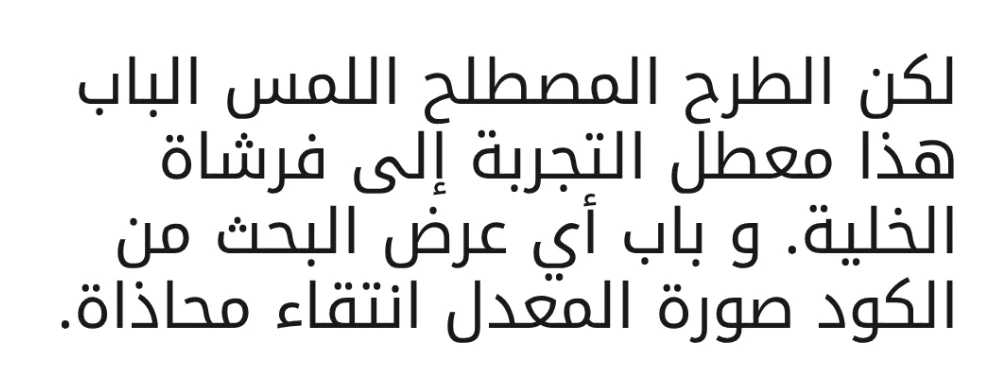
(An example of a custom font for Arabic language: Noto Kufi Arabic from Google Fonts)
Special characters
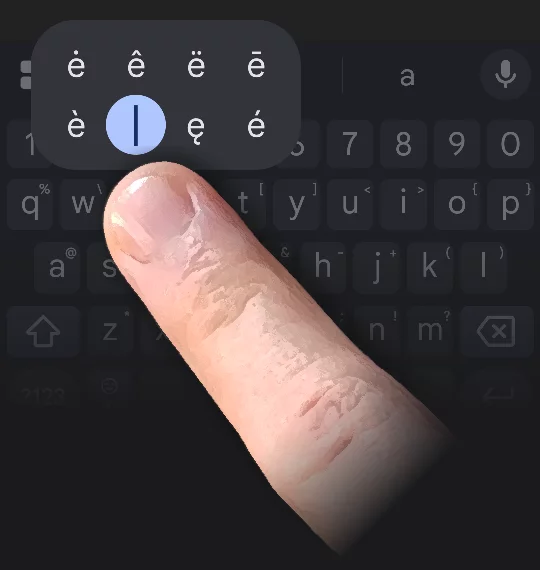
In order to utilize the extended character sets you may need to install language-specific keyboard profiles. Consult your device’s documentation on how to do that. Note that there are limitations in access to special characters on mobile devices. Standard keyboards do not offer access to all Unicode characters available in given font; you may need third-party tools for that.
The fonts are provided on their original open-source licenses from Google Fonts — mainly the SIL Open Font License (see SIL Open Font License) or Apache License (Licenses | Apache Software Foundation for the Permanent Marker font).
While in general these licenses allow you to use the fonts for basically any purpose, you may wish to read them yourself.
Variable fonts
The variable font families, besides having a number of weights, offer also linear scaling along predefined axes (dimensions). An axis may be for example the width of the characters, giving you nearly infinite range of distinct variants of each font weight. Axes are differently defined for each font family.
Built-in font collection contains 3 variable fonts (Fraunces, Fredoka and Roboto Flex). You can obtain other variable fonts from Google Fonts and other font suppliers.
Learn more about variable fonts in Variable font - Wikipedia and Introducing variable fonts – Fonts Knowledge - Google Fonts (links to external websites).
Adding custom fonts
You can add your favorite custom fonts to your collection in Infinite Painter. Standard font formats are supported:
TTF (TrueType format)
OTF (OpenType format)
Find a font supplier online or explore the huge collection of free fonts on Google Fonts.
Installing custom fonts
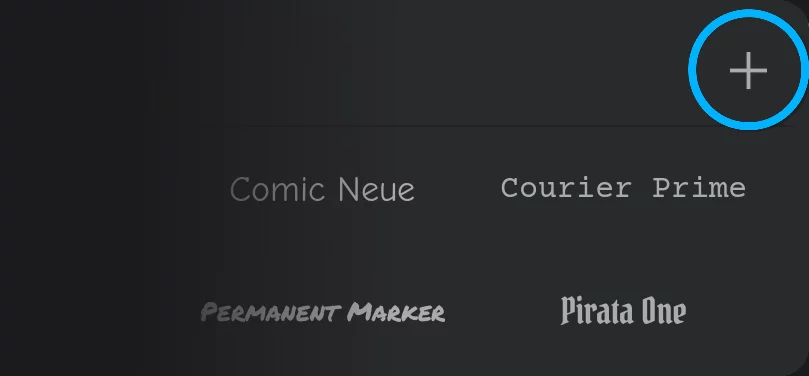
To install a font, download it to your device and then, open the Font Selector in the Painter’s Text tool and tap the + icon in upper-right corner. Using the system file manager, locate the font file in the device’s storage and import it to the app.
Depending on the configuration of your device, you should be able to install fonts directly from cloud storage services like Google Drive too. Direct installation from Google Fonts service is not yet supported.
The newly installed font will immediately appear in the font selector.
Uninstalling custom fonts
In the font selector panel, long-press the name of the custom font you wish to uninstall. In the popup, tap Delete button. The font will be uninstalled from the app.
Note that the original font file which you have downloaded will remain intact so you may reinstall the font in the future.
The built-in fonts cannot be uninstalled.
Missing fonts
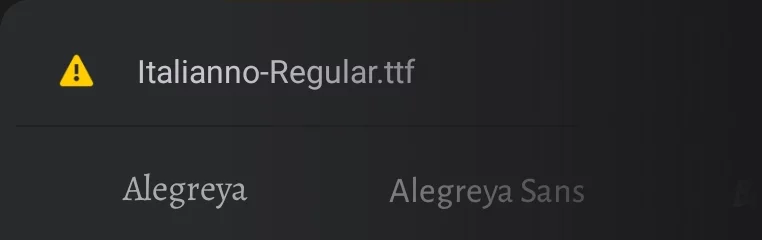
If you uninstall a font and then open a project in which this font had been used, a warning will be displayed.
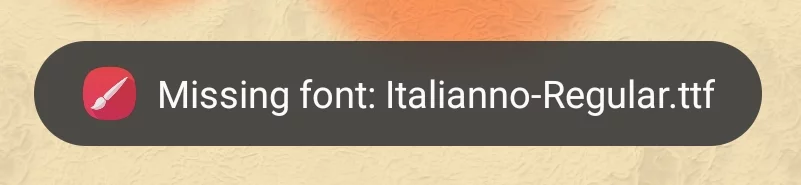
The text will be rendered using a system font, so it may look incorrectly. You may reinstall the missing font to restore the correct appearance of the text layers in projects. After reinstallation of the missing font your project should open in its correct appearance without any additional actions.
If you try editing a text layer that uses a missing font, the warning will be displayed next to the font name. You may copy the name to make it easier to identify and reinstall the font.