
Overview
Bézier path as a guide.
Pen guide allows you to construct a complex path and then draw along it with any brush.
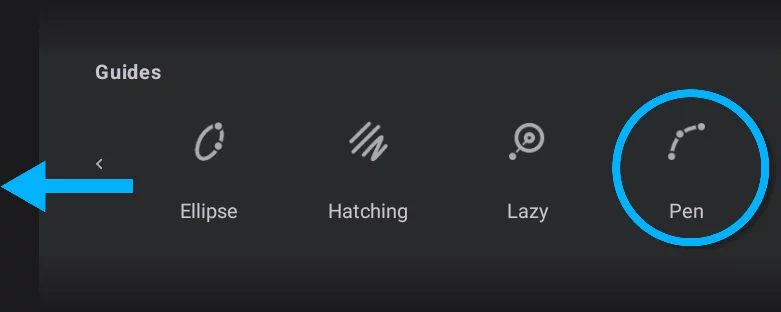
Note that to access the Pen icon you have to scroll the icon row.
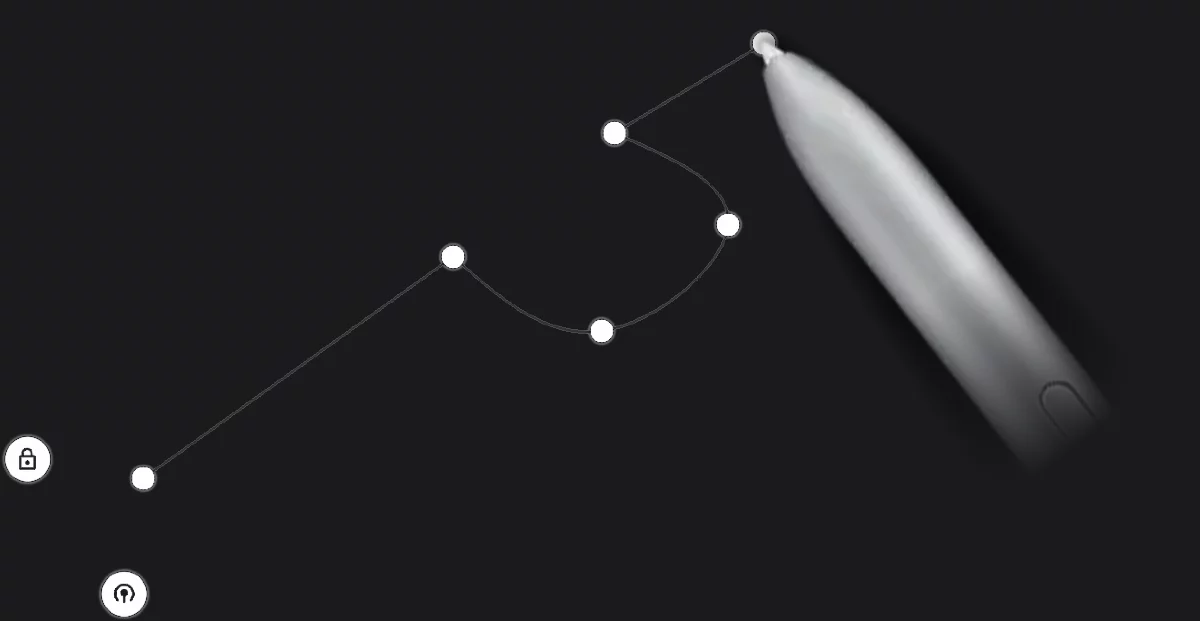
Step 1: Construct the guide path.
Step 2: Draw a stroke along the guide path.
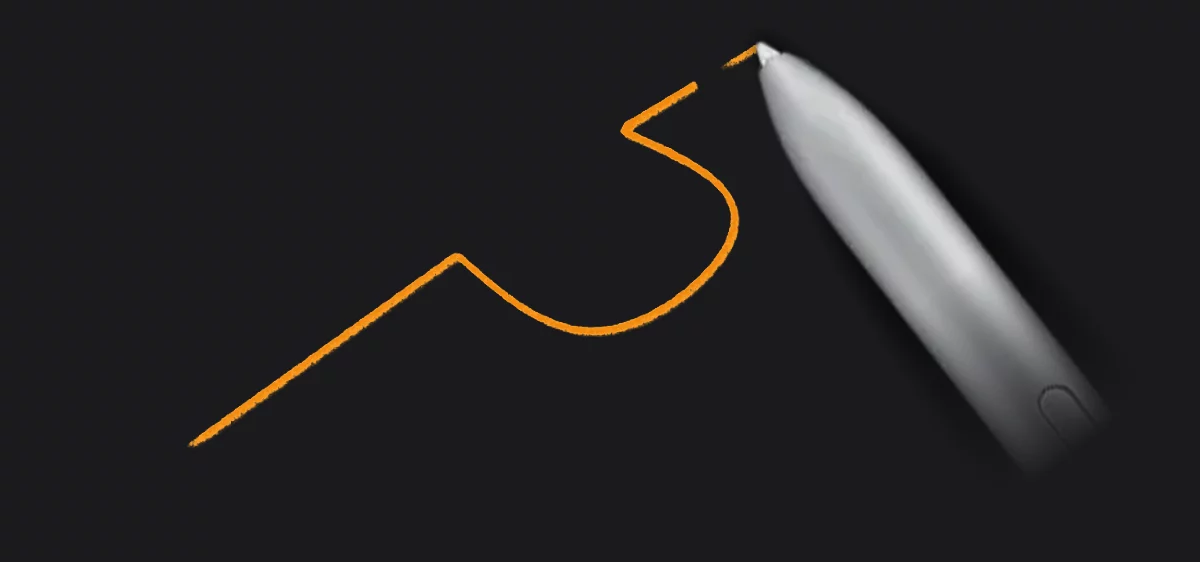
With the Pen guide you may create smooth shapes or polylines and mix them in one path
The workflow
Make a path. Draw along it. Forget it.
1. Create the path
(more in Pen guide — building the path).
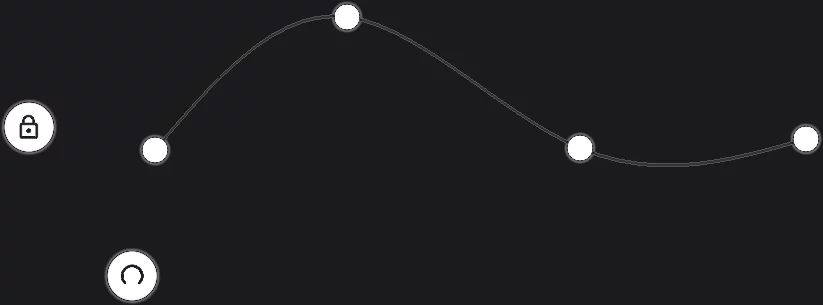
2. Edit the path
if necessary, by dragging the nodes (more in Pen guide — editing the path).
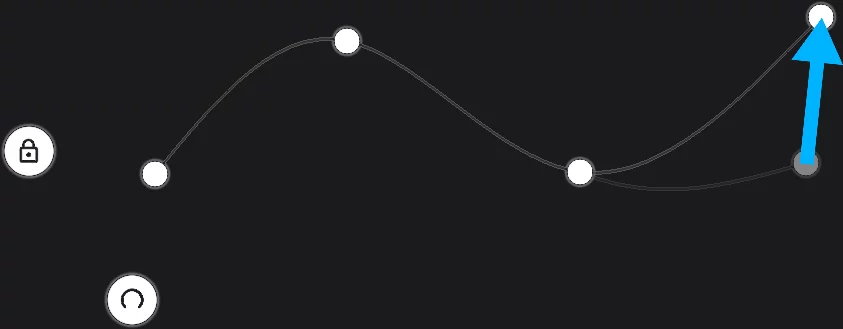
You can change the smoothness of each node; learn more Pen guide — smooth and cusp nodes.
3. Lock the guide with the padlock button.
Note that you cannot edit the path after that.

4. Draw along the guide as many strokes as you need.
Note that you can undo any imperfect stroke.

You can use any brush in any mode with the Pen guide and change brushes without turning the guide off.
5. Clear the guide with the checkmark button.
Note that the path is permanently discarded after that.

The guide disappears. You can create another path or turn off the tool with its floating button.
Controls
Control your pen.
You can edit the path shape until you hit the Lock button.
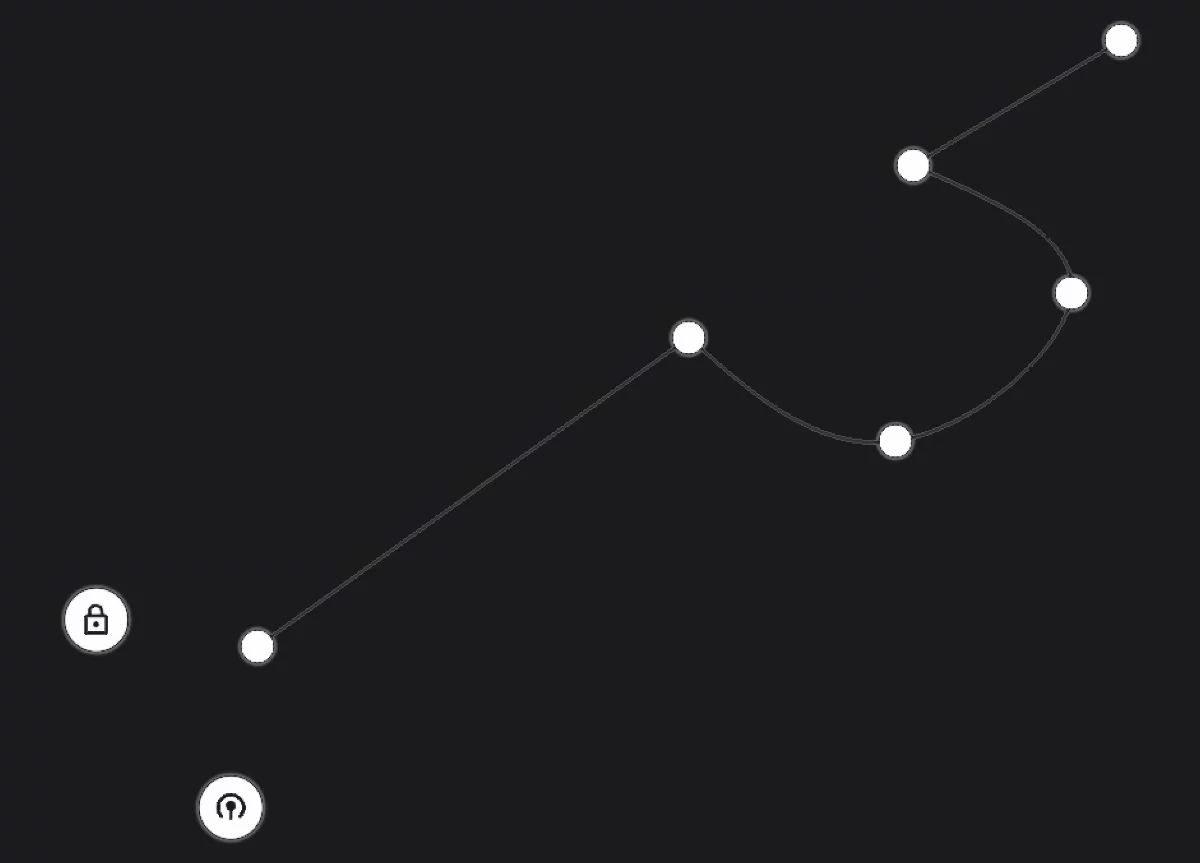
Lock the path button (Finish editing)
Tap it only when you are sure that you don't need to correct the shape. There is no way back.
Close the path button
(in fact, it is Close/Open toggle)
Tap it to close the path (i.e. to add a segment between the last and the first nodes). More in Pen guide — editing the path.
First node
(the Lock and Close buttons stick to it)
The path line
will become your guide when locked. Tap on the line to add nodes between the existing ones.
A node
a control point of the path. Drag to reposition, tap to toggle smooth/cusp. More in Pen guide — editing the path.
Last node
Tap anywhere to add the next one.
Note that once you lock the Pen guide, you cannot return to the editing mode.
Learn more about editing of the path in Pen guide — editing the path.
Smooth and cusp nodes
Do you like it hard or soft?
Each node in a path may be either smooth or cusp (corner).


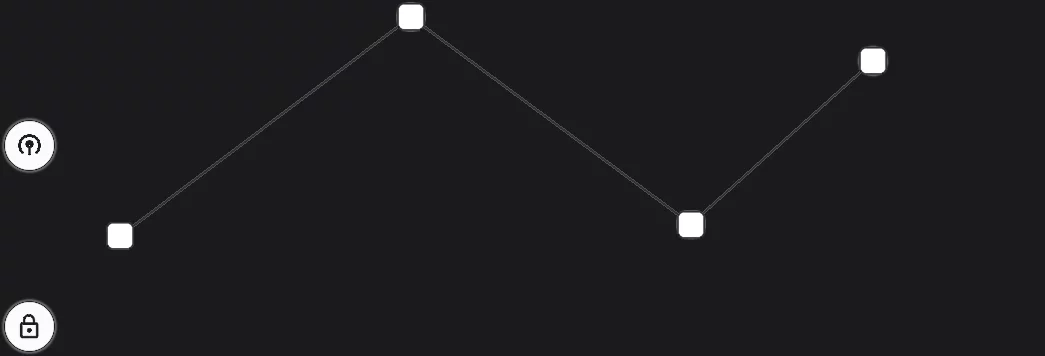
Smooth node is indicated by a round point, a cusp node is a square point.
Tap on the node to toggle between these two states.
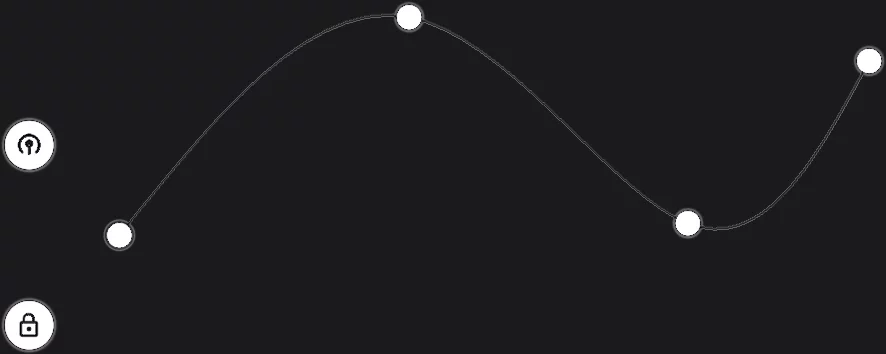
Smooth node

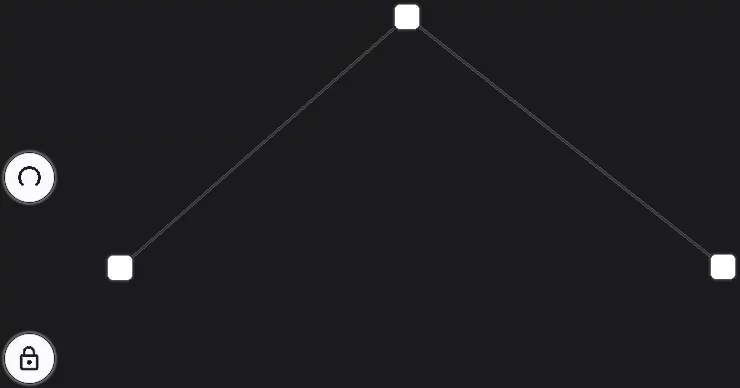
Cusp node
A chain of smooth nodes creates soft, organic shapes.
A chain of cusp nodes creates a polyline.
The path in the Pen tool is a simplified Bézier pathBezier curveA Bézier curve is a smooth, flexible curve used in digital graphics to create shapes, paths, and control curves. It is defined by a few key points, called control points or nodes, which you can adjust to change the shape of the curve. It is like a virtual rubber band that you can pull and twist by moving these control points to get the desired shape for your design.
In fact, Bézier paths may consist of multiple segments, also with sharp corners between them. A straight line is a special case of a Bézier segment.Learn more.
You have less controls than in professional graphic applications, but the geometry is the same and the controls are simpler.
Building the path
Tap and drag.
The smoothness of a node depends on how you draw it: drag for a smooth node, tap for a cusp node.
Drag a short distance for a smooth node

Note that the direction of the dragging gesture doesn't matter.
Tap in place for a cusp node

You can mix smooth and cusp nodes in one path

(Previous node smooth)
Tap to add a cusp node.
You can toggle smoothness of existing nodes at any time

Tap on the node to toggle it from smooth to cusp (or vice-versa).
Editing the path
You can change everything.
You can move the nodes, remove them, toggle their smoothness type and close the shape.
Drag a node to reposition it and reshape the path

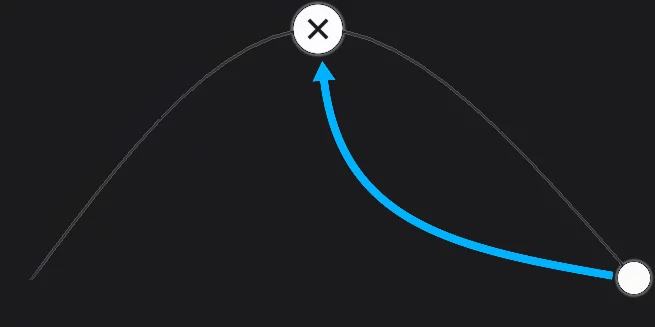
Drag a node over its neighbor to remove
Add nodes by tapping anywhere on the path line.
Tap a node to toggle smooth/cusp
(more in Pen guide — smooth and cusp nodes).

The change affects the shape of the path on both sides of the node.

Tap the Close button to close the path
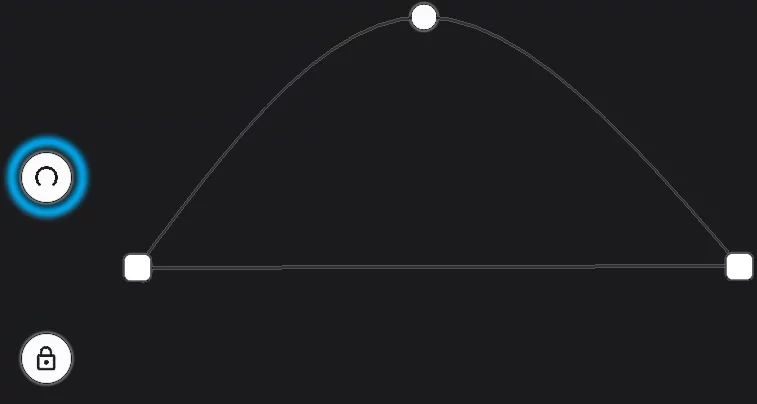
Tap again on the Close/Open button to open the shape.